Overview
Zebra Power Input Configurator (zPIC) is an Android app available from the Zebra Support Portal (link below), and is installed as any other Android app. It can be deployed using Zebra StageNow or a company's own EMM system on devices with the minimum LifeGuard updates shown below. Organizations using an EMM system can opt to add Zebra OEMConfig to gain Zebra-specific capabilities for configuring devices and adding file persistence (if not supported by the EMM system).
Requirements
- Power Input Configurator (zPIC) app from Zebra Support Portal. Download now.
- At least one supported Zebra device on which to create power configuration file(s). See supported devices.
- One or more supported target devices* running Android 13 or Android 14 with the corresponding LifeGuard update:
- KC50 with Android 13:
13-40-29.00-TG-U00(or later) - KC50 with Android 14:
14-28-03.00-UG-U42(or later) - ZEC500 with Android 14:
14-34-20.00-UG-U00(or later)
- KC50 with Android 13:
* Power configuration via zPIC is suported only on "premium" device SKUs. See Zebra Support Portal for the list of supported devices.
Usage Synopsys
The following lists the basic steps for using the zPIC app to create config files. Only Step 1 is required for setting up the app for use; the remaining steps are provided for information.
See Usage Guide for detailed instructions and important usage notes.
To set up zPIC app for first-time use:
Push the zPIC
.apkfile to a supported Zebra device and launch.
Upon launching the zPIC app, the current power source is selected by default.Select the "Configuration Power Source" to be configured from the drop-down (if different from the default):
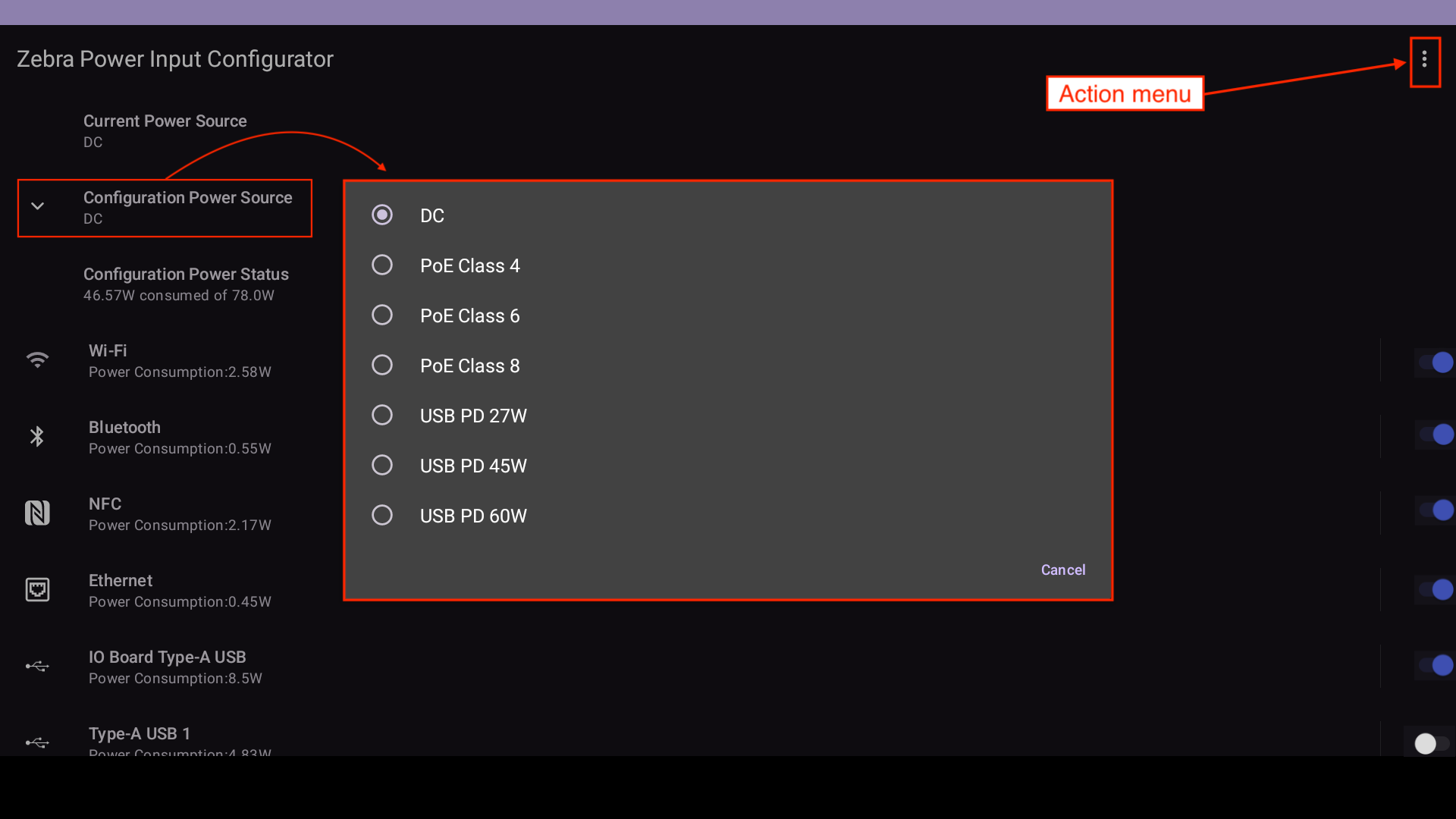 Configurable power sources for Zebra's ZEC500 "wireless docking" computer.
Click image to enlarge; ESC to exit.Configure settings as desired for the power scenario expected for the host device.
As each setting is changed, note the changes to the "Configuration Power Status" reading.When desired power levels are reached, select EXPORT from the Action menu ( in upper-right corner) to save the configuration file.
Files are stored on the device in:/Android/data/com.zebra.powermanagerapp/filesOptionally, repeat Steps 2, 3 and 4 until all desired power scenarios are created and saved.
Config files are ready to be deployed.
Deployment
Once device power settings are configured and exported, the resulting .json file(s) can be deployed to supported devices across an enterprise.
Zebra strongly recommends fully testing all configuration files on devices identical to the intended targets before wider deployment.
To gather and deploy zPIC config files:
Connect a Windows or MacOS computer via USB to the Android device* on which the zPIC config (
.json) files were created and exported.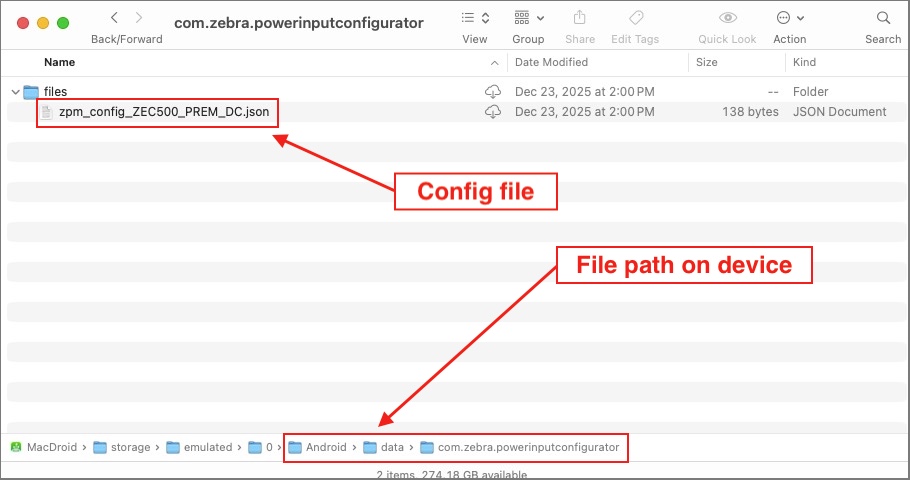 MacOS Android file browser showing one config file on a ZEC500 device.
Click image to enlarge; ESC to exit.Navigate to the following location on the device:
/sdcard/Android/data/com.zebra.powerinputconfigurator/filesCopy the desired zPIC config file(s) onto the host computer.
Create a deployment Profile in Zebra StageNow or an EMM system with Zebra OEMConfig and include config file(s) copied in Step 3.
In StageNow File Action field, select “Deploy file for an application”
In the "Target application file definition" field, enter the zPIC folder name and exact file name.
For example:
“com.zebra.powermanagerservice/zpm_config_KC50S_STD_PoE_class4.json”Set the Profile to deploy the file(s) to the following destination on target device(s):
/Android/data/com.zebra.powermanagerapp/filesApply persistence as needed based on the deployment tool in use. For StageNow, use Persistence Manager.
Target device(s) must be powered off and restarted after receiving zPIC config file for settings to take effect.
* Access to the Zebra file system via USB requires enabling System > Developer Options > USB debugging on the device.
Configuration File Notes
- Config files MUST be created on devices IDENTICAL to the intended target(s).
- The zPIC app is NOT required on target devices receiving zPIC power configuration file(s).
- Multiple config files can reside on a device; Zebra embedded software selects the appropriate configuration based on the power source detected at startup.
- zPIC automatically names exported files according to the device model and selected power class. For example:
zpm_config_KC50S_STD_DC.jsonzpm_config_KC50S_STD_PoE_class4.jsonzpm_config_KC50S_STD_PoE_class6.jsonzpm_config_KC50S_STD_PoE_class8.json
- DO NOT RENAME FILES! This is critical for proper config-file identification at startup.
Also See
- About the zPIC app | General description and expected use cases
- zPIC Usage Notes | Guidelines and behaviors for using Power Input Configurator
- Zebra KC50 Kiosk Computer Guide | Programmers guide to Zebra kiosks, including their default power settings
- Zebra ZEC500 Usage Guide | Set up and connect to Zebra's "wireless docking" station; default power settings