Overview
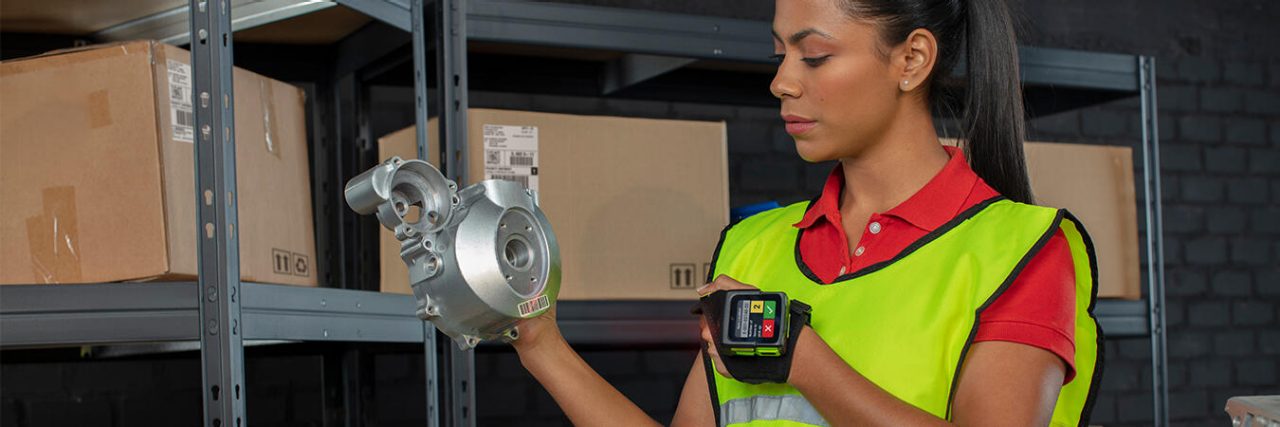
Truck Loading Demo app is a sample Android app that shows one method of implementing a workflow on WS50 and WS501 devices, members of Zebra's Android-based wearable computer series. The workflow involves moving from area to area and scanning packages intended to be loaded onto trucks.
Note: This sample keeps the screen turned on while running, which can impact device power consumption.
Requirements
- Zebra device(s) running Android 11 or later
Downloads
Download the following:
- Truck Loading Demo source code for the sample app
- DataWedge configuration file to configure barcode scanning with DataWedge
- Sample barcodes for badge, door and package scanning
Configuration
This sample app uses DataWedge to capture barcode data. The DataWedge configuration file is provided, which must be imported to the WS50. See Downloads.
Import Configuration
Follow the steps below to import the DataWedge configuration file to a WS50 device:
Copy the configuration file
dwprofile_truckloadingdemo.dbto the WS50 device in folder location:
/storage/emulated/0/Android/data/com.symbol.datawedge/filesOpen DataWedge.
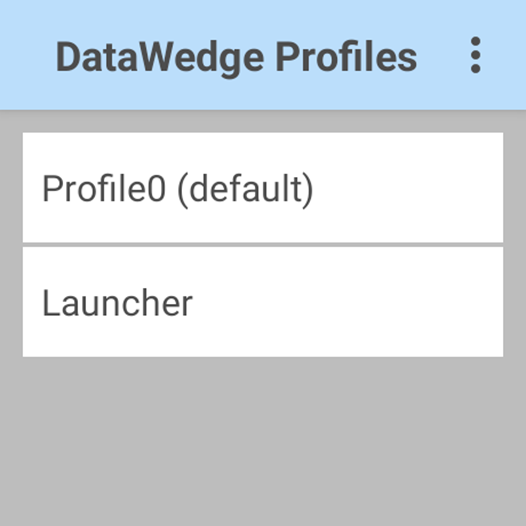
Tap on the top right menu and select Settings.
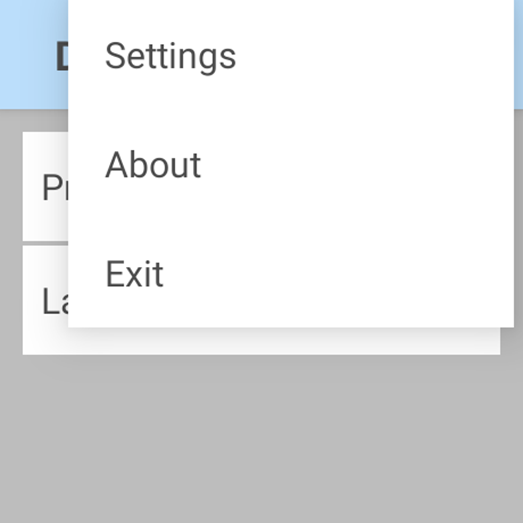
Scroll down and select Import.
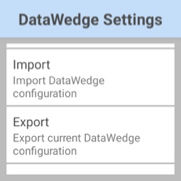
Browse and select the desired profile or configuration file to import.
The file is imported. If the import is successful, a confirmation message appears.
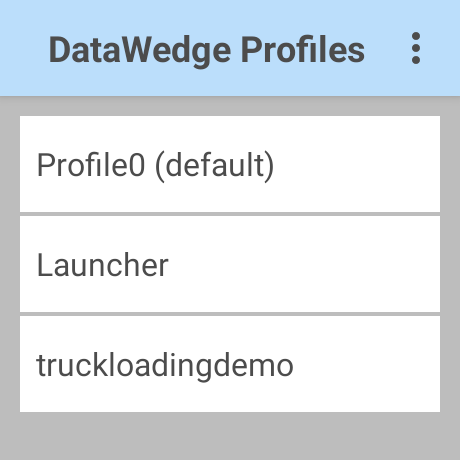
The imported profile "truckloadingdemo" is listed in the DataWedge Profiles screen.
How to Use
This section walks through a workflow of the Truck Loading Demo app after it is installed on the WS50. The user moves from one area to the next, scanning packages at each area before they're loaded onto trucks.
When arriving at an area, the user scans the "door" barcode to identify the user location. Then the user scans the barcode of the package to load onto the truck. This process is repeated until the user is ready to log out.
1. Log-in
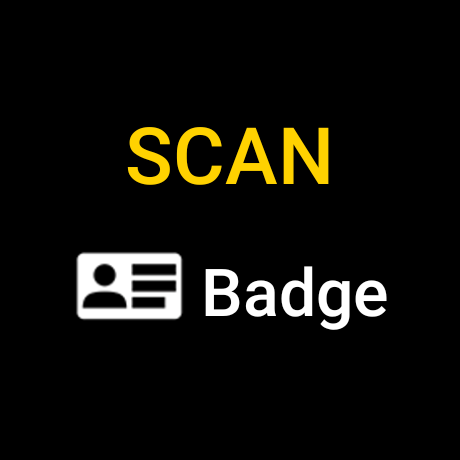
Run the app to display the Scan Badge screen.
- To log in, scan the Badge barcode.
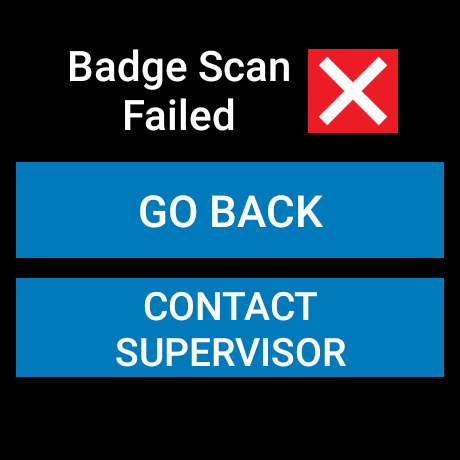
- To simulate a "bad" scan, scan a barcode other than Badge.
- Press Go Back to navigate back to the Badge Scan screen.
- Contact Supervisor opens the Contact Supervisor screen.
 |
 |
|
| Scan good badge | Scan bad badge |
2. Go to Area
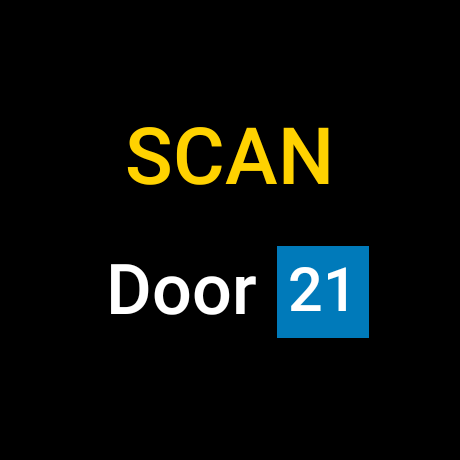
After log-in, a Scan Door screen appears indicating to go to Door 21 and scan the "Door 21" barcode.
- Scan the "Door 21" barcode to simulate a successful check-in.
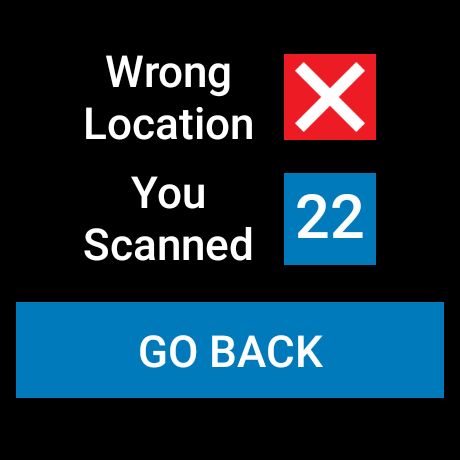
- Scan the "Door 22" barcode to simulate a check-in to the wrong door.
- Press Go Back to navigate back to Scan Door screen
- If the "Badge" barcode is scanned, it brings the user to the Log Out page, giving the user the option to sign out or go back.
- If any other barcode is scanned, a red "X" is flashed for one second, then the screen returns to the Scan Door screen.
 |
 |
|
| Scan good location | Scan bad location |
3. Scan Packages
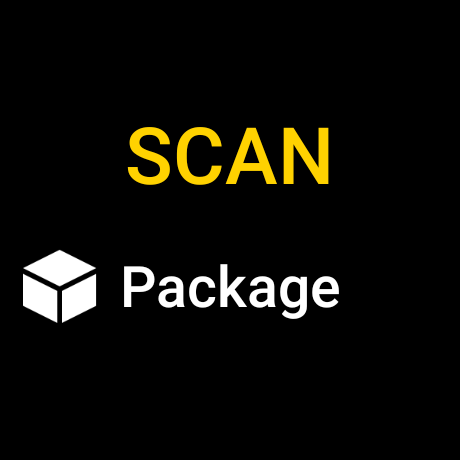
The user is directed to the Scan Packages screen.
- Scan any barcode that contains the word "package" to simulate a successful scan.
- Scan the "Door 21" barcode to check out and go back to the Scan Door screen.
- If "Badge" is scanned, it brings the user to the Log Out page, giving the option to sign out or go back.
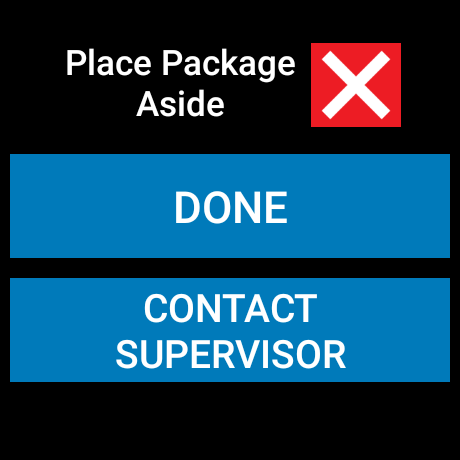
- Scan any other barcode to simulate a bad package scan.
- Press Done to navigate back to the Scan Package screen.
- Contact Supervisor opens the Contact Supervisor screen.
 |
 |
|
| Scan good package | Scan bad package |
Note: Typically, barcodes scanned are sent to a back-end host, which logs the barcodes scanned by the user. Based on this use case, the host sends back information to the user on what action to perform with the scanned item. For example, the user may be instructed to add the item to one of the totes they are filling. Often, they are color-coded, and the app might turn on the device LED to the appropriate color for easier identification. For example, the picker might be instructed to put the item into one of two trucks; the app can flash the left or right LED as appropriate to indicate which vehicle to load. This demo app flashes the left red LED to demonstrate this behavior.
4. Logout
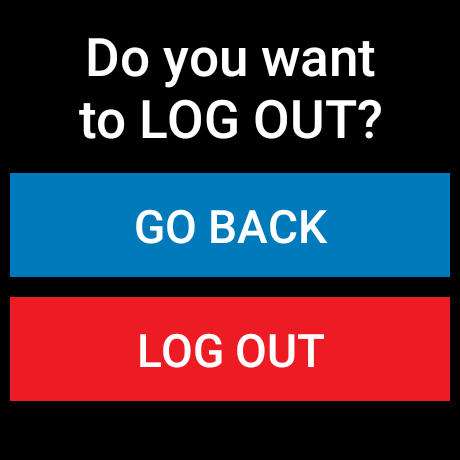
While in the Scan Door or Scan Package screens, the "Badge" barcode can be scanned to log out. Alternatively, tap and hold the screen to log out. The Logout screen displays the option to go back to the preceding screen or to log out, which returns to the Badge Scan screen.
Log out
Optional: Contact Supervisor
The user has the option to contact a supervisor when a badge scan or package scan fails.
Badge Scan
When a badge scan fails, the user can tap the Contact Supervisor button.
|
| Bad badge scan |
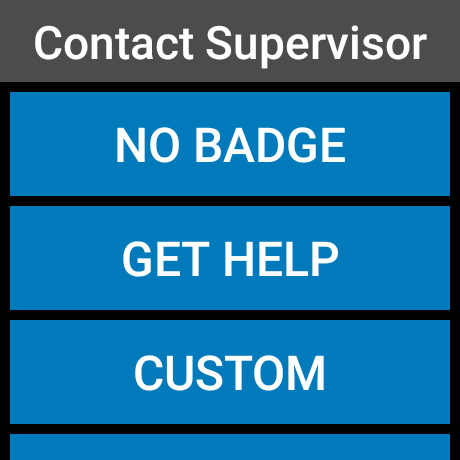
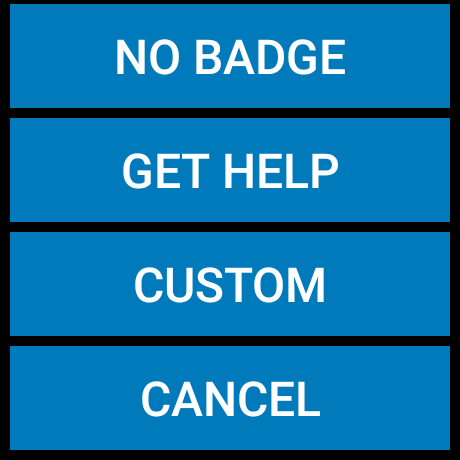
The Contact Supervisor screen appears, offering canned answers for errors, as well as an option to enter a custom message.
 |
 |
|
| Contact Supervisor screens |
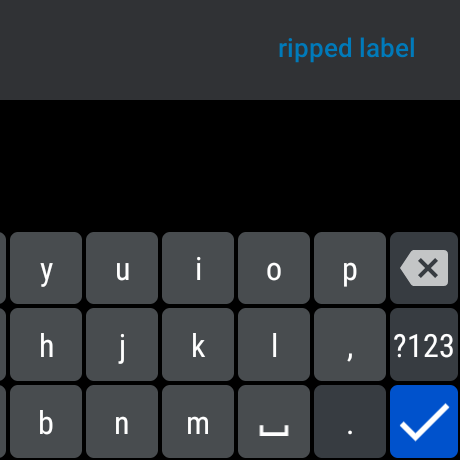
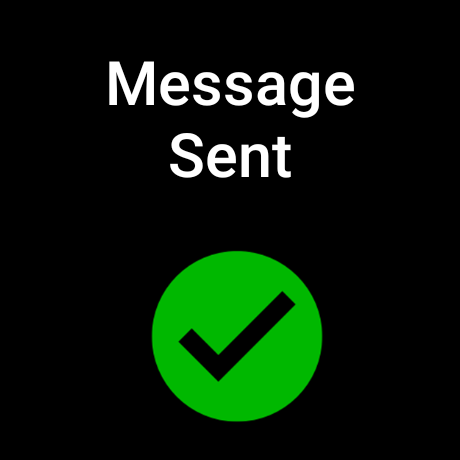
To enter a custom message, tap the Custom button. Tap "..." and enter the message using the input panel. When complete, tap the check button to send the message. A confirmation message appears indicating the message is sent.
 |
 |
|
| Send custom message |
Package Scan
When a package scan fails, the user can tap the Contact Supervisor button.
|
| Bad package scan |
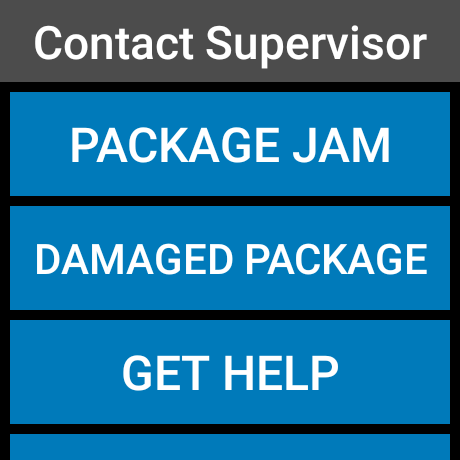
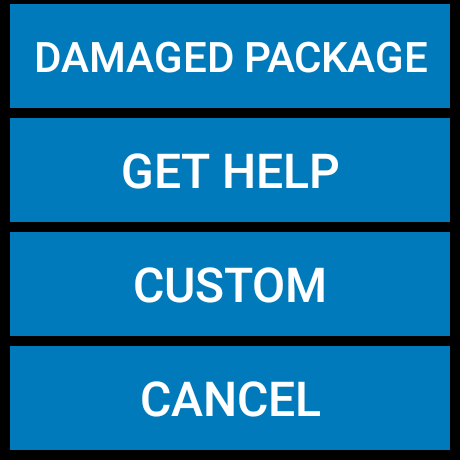
The Contact Supervisor screen appears, offering canned answers for errors, as well as an option to enter a custom message with the Custom button.
 |
 |
|
| Contact Supervisor screens |
To enter a custom message, tap the Custom button. Tap "..." and enter the message using the input panel. When complete, tap the check button to send the message. A confirmation message appears indicating the message is sent.
|
|
|
| Send custom message |
See Also
- WS50 Programmer's Guide - Guidelines for application development on WS50
- DataWedge WS50 Programmer's Guide - Guidelines for data capture and application development using DataWedge for WS50