Overview
The Zebra Showcase App is an interactive application for discovering the key features of Zebra Mobility DNA, Zebra's suite of tools for enhancing enterprise device performance, productivity, and security. The app provides self-guided, tutorial-based demos for a wide range of data capture capabilities, including barcode scanning, OCR, and image capture. It also contains more complex demo apps that demonstrate the use of Zebra's AI Data Capture SDK.
Built on Zebra's Enterprise Browser, the Showcase App and its demos can be updated quickly and easily without requiring a full reinstallation.
To review the latest features and updates in the Showcase App, see the What's New section.
Learn about Zebra Showcase App
Requirements
The Showcase App is supported on Android 13 or higher, and on Android 11 with the required LifeGuard updates:
| Platform | Minimum LifeGuard Update Required for Android 11 | Example Devices |
|---|---|---|
| SD660 | 11-35-05.00-RG-U00 or later |
TC52, TC57, TC72, TC77 |
| SD6490 | 11-21-27.00-RG-U00-STD-ATH-04 or later |
TC53, TC58, TC73, TC78 |
For information on LifeGuard updates, see the respective device product page in the Zebra support portal.
For details on devices supported by each platform, see Zebra Platform Devices.
Installation
The app launcher for Showcase App is pre-installed on all supported Zebra Android devices.
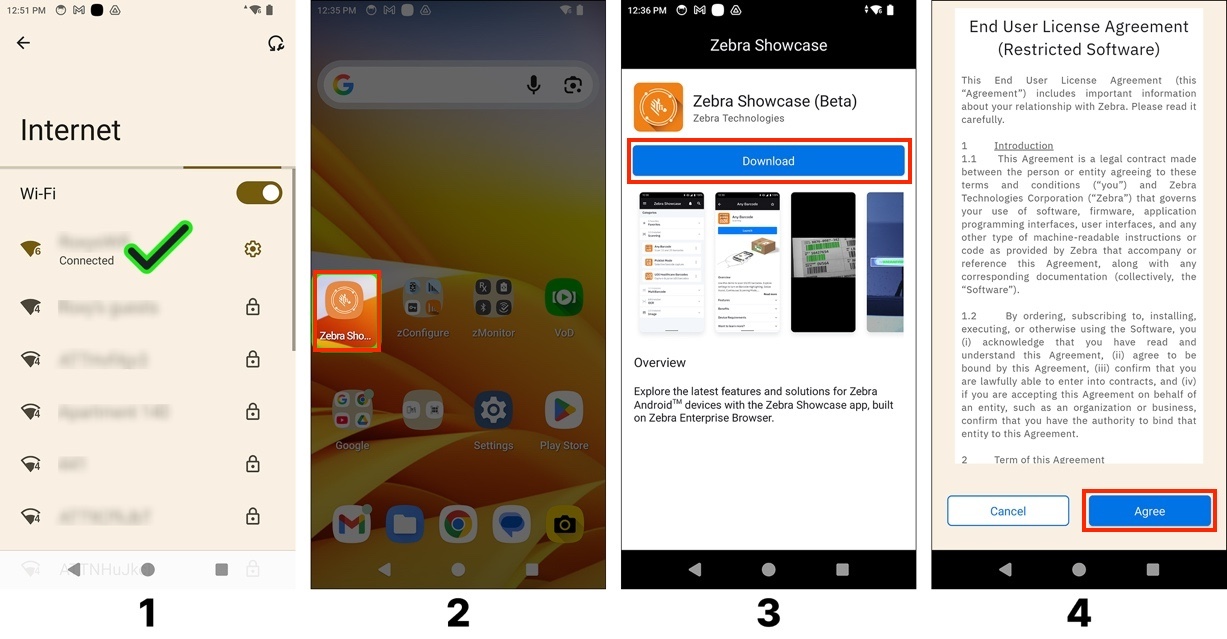
To install the Showcase App:
- Connect the device to the internet. This is required for the first time download.
- From the home screen, tap on the Zebra Showcase icon.
- Tap Download to initiate the installation process.
- In the End User License Agreement (EULA) screen, tap Agree.
- Once the app is downloaded and installed, it will automatically close, and the device will return to the home screen.
When launching the Showcase App for the first time, a tutorial appears providing an overview on how to use the app. Either follow the tutorial or tap Close to proceed to the main app interface:
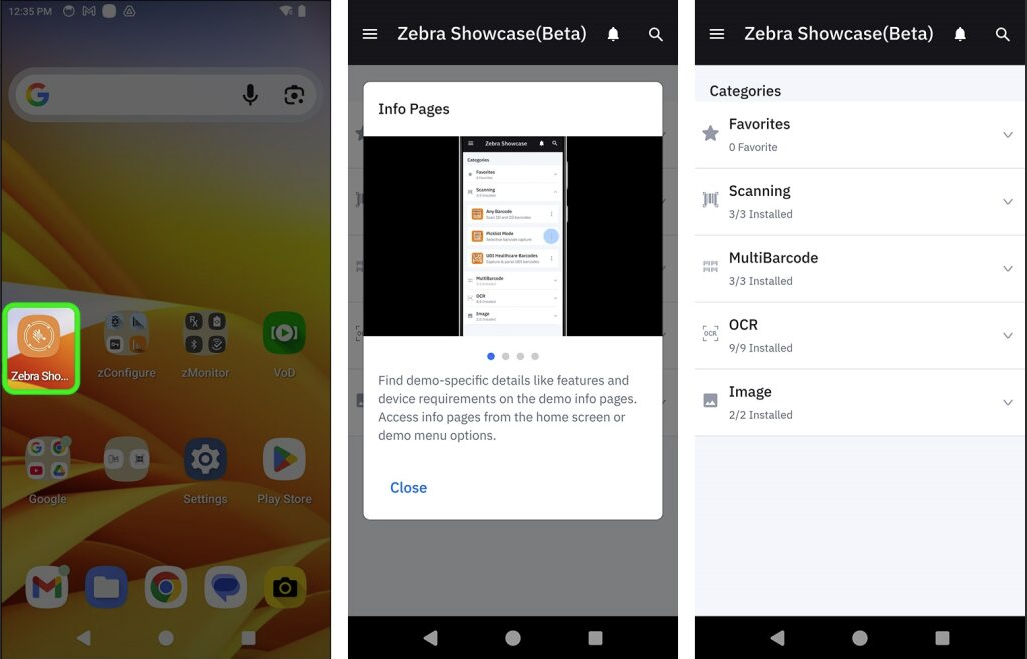
Notes:
- A predefined DataWedge profile named "Zebra Showcase" is dedicated for use with Zebra Showcase App.
- After the download, all demos can be experienced offline without an internet connection.
Getting Started
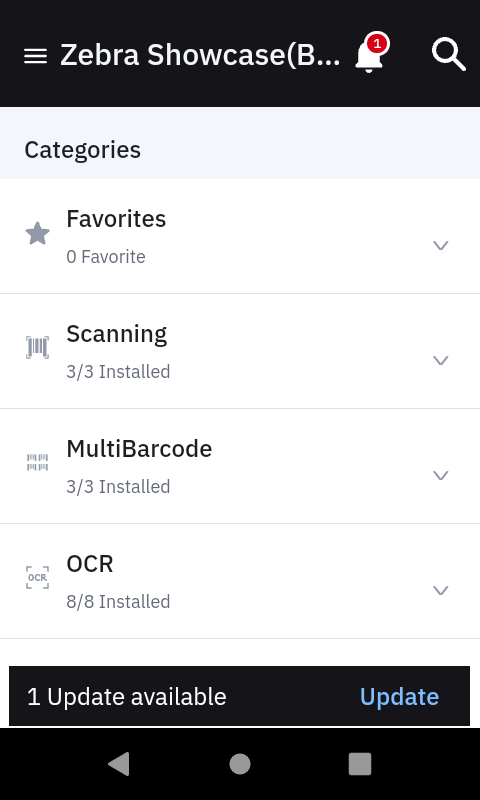
When launched for the first time, the Showcase App displays a brief tutorial on its main features. All subsequent launches opens directly to the app's home screen, which lists Favorites at the top, followed by demo categories. Most demos are self-guided with built-in tutorials; more complex demos are covered in the separate user guide.
 |
 |
|
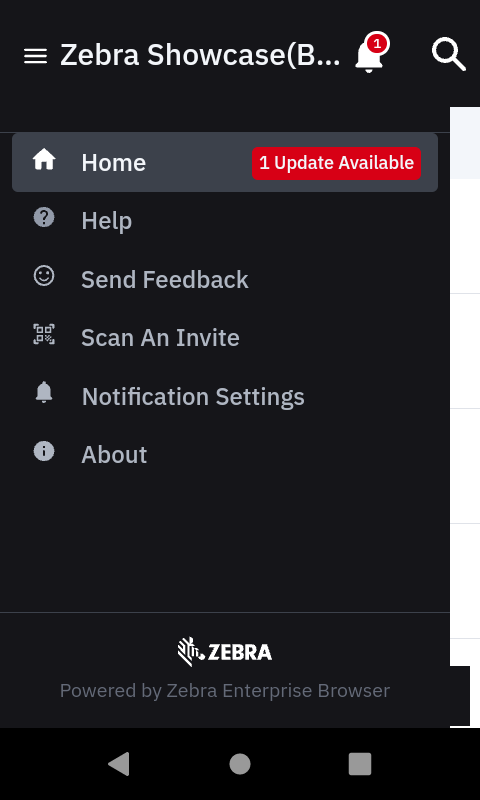
| Access the options menu by tapping the icon in the top-left corner. | ||
Menu Options:
- Home - navigates to the home screen.
- Help - displays the tutorial on how to use the app.
- Send Feedback - opens a form to submit feedback on the app or requests for additional demos.
- Scan An Invite - for future use; currently disabled and not functional
- Notification Settings - enables/disables notification settings for new releases of demos or demo updates, and controls decode feedback notifications (audio, LED, haptic).
- About - displays app version information.
Accessing Demos
Follow these steps to install a generic demo on your device.
| Step | Action |
|---|---|
| 1. Open Zebra Showcase | Launch the Zebra Showcase application on the device. |
| 2. Find the Demo | For example, navigate to the AI Data Capture SDK section and select either AI Data Capture Demo or AI Barcode Finder. |
| 3. Install | If the device is supported, the option is given to install the app. |
| 4. Locate the App | After installation, the demo is available from the main Showcase App menu or as a standalone icon on the Android home screen. |
Showcase App Navigation
Each demo includes the following options from the top menu:
- View info - Provides information about the demo, its features, benefits and links to additional information.
- Demo Tutorial - Provides a walk-through on how to use the demo.
- Settings - Provides demo-specific setting options that can be configured.
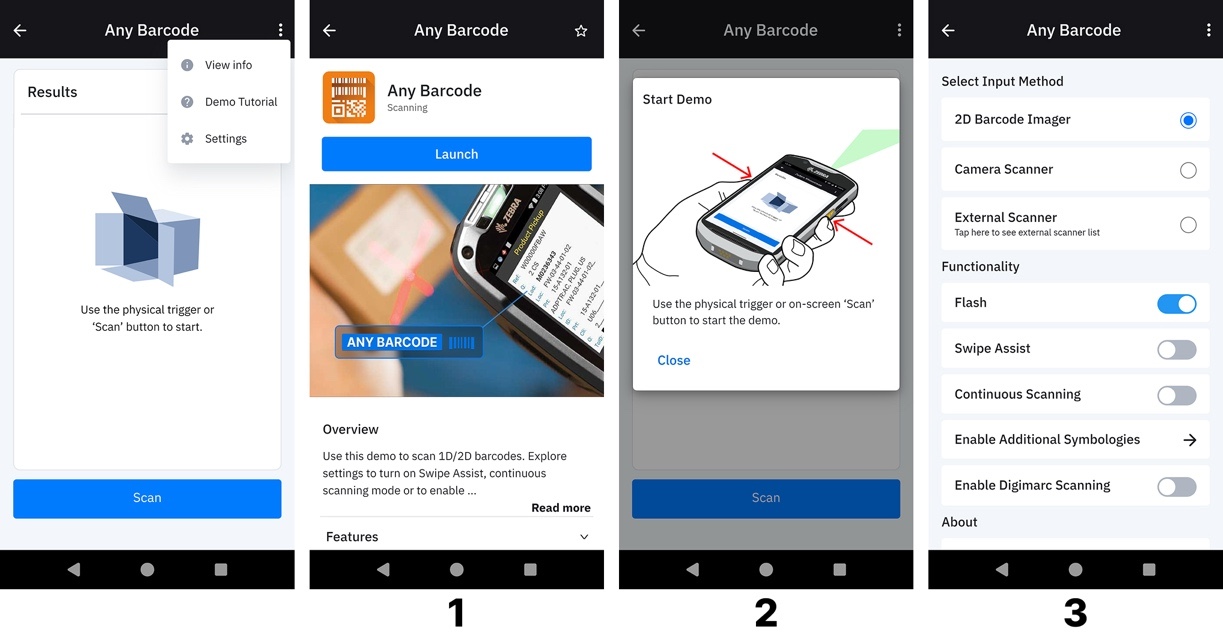
Options menu from a demo
Favorites
Add a demo to Favorites for quick access. In the View info screen of the demo, tap on the star at the top right. This fills the star with yellow color and adds the demo to Favorites.
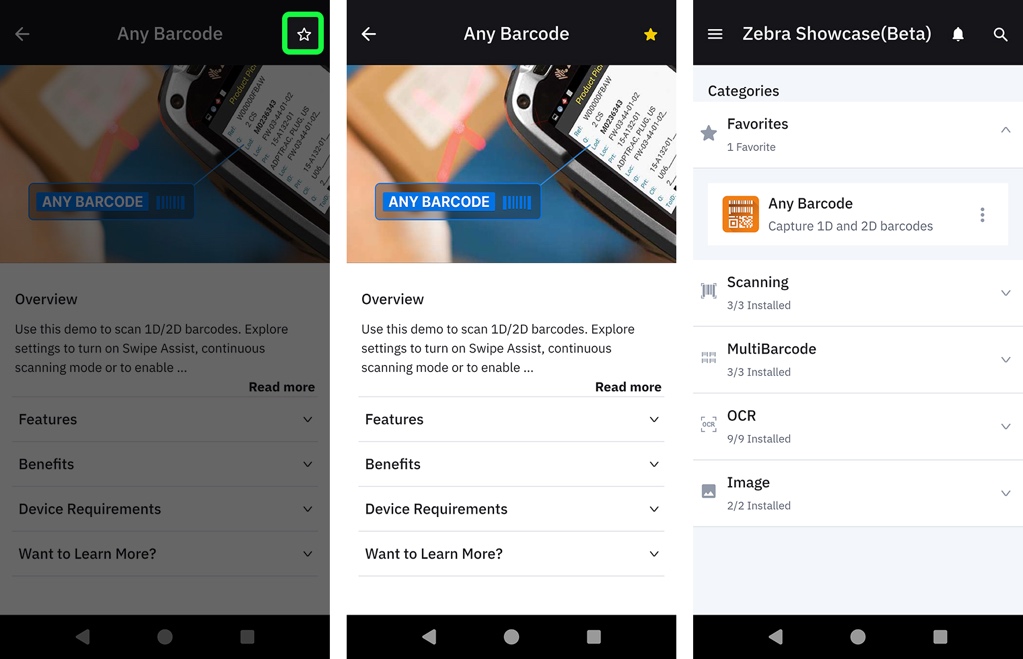
Add demo to Favorites
Available Demos
This section lists all demos available in the Showcase App. For demos that require scanning, a printable sample barcode is available for immediate download after completing the request form.
AI Suite Data Capture SDK
 |
AI Barcode Finder | Identify actions mapped to specific barcodes |
 |
AI Data Capture | Capture barcode, text, identify shelves, price tags and products |
 |
AI Pallet Checker (Beta) | Localize pallet boxes, decode barcodes and verify box-level inventory |
Note: Demo User Guides are provided due to the complexity of the AI Suite Data Capture Demos.
AI Delivery Intelligence
 |
Photo Proof of Delivery | AI guides drivers for compliance on the first try |
| |
Guided Photo Proof of Delivery | AI analyzes & enhances post-capture compliant photos |
Scanning
 |
Any Barcode | Capture 1D and 2D barcodes |
 |
Picklist Mode | Selective barcode capture |
 |
UDI Barcodes | Capture and parse healthcare barcodes |
MultiBarcode
 |
Variable or Fixed Quantity | Capture up to 100 barcodes in a single trigger press |
 |
Auto Group ID | Identify and capture a group of common barcodes, such as multiple serial numbers |
 |
Specific Barcodes | Capture specific barcodes from a group of barcodes |
OCR
 |
Picklist + OCR | Point and capture barcode or text |
 |
Free-Form OCR | Extract printed text from labels, documents and more |
 |
TIN OCR Wedge | Capture Tire Identification Numbers molded into tire sidewalls |
 |
License Plate OCR Wedge | Capture US and EU vehicle license plates |
 |
VIN OCR Wedge | Capture Vehicle Identification Numbers from paper and windshields |
 |
ID OCR Wedge | Capture driver’s licenses and identification cards |
 |
OCR-B Travel Documents | Scan travel documents such as passports and visas |
 |
Meter Reading OCR Wedge | Automatically read analog, digital and dial meters |
 |
Container ID OCR Wedge | Capture ID numbers from shipping containers |
Image
 |
Free-Form Image Capture | Image/barcode(s) capture via integrated imager or camera |
 |
Document Capture | Easily capture cropped images of documents |
What's New
This section discusses the latest features and updates for Zebra Showcase App.
Showcase Components
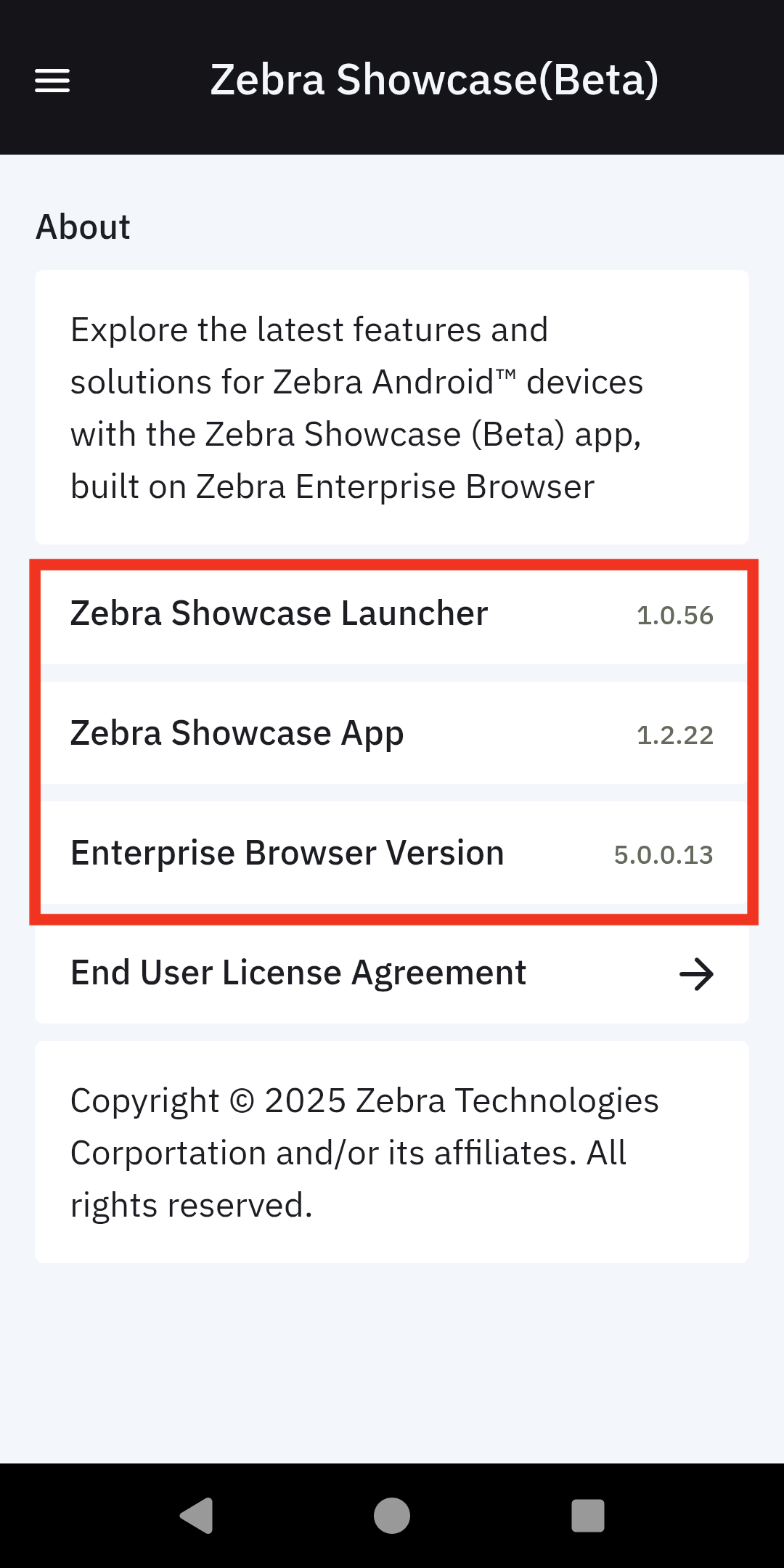
Zebra Showcase consists of the following key components:
| Zebra Showcase Launcher | The pre-installed entry-point on Zebra Android devices to find, install, and open available demo applications that highlight Zebra’s capabilities. |
|
| Zebra Showcase App | The main interactive demo application that lets users experience and test Zebra’s scanning, OCR, image capture, and AI data capture features without writing any code or configuring an app. | |
| Enterprise Browser | The runtime foundation that the Zebra Showcase App is built on. It allows the Showcase App to load, update, and run demos and features dynamically, without requiring a full app reinstallation with each update. |
Showcase App v1.3.0
- Introduced the capability to notify users of new demo applications.
- Updated the Zebra branding for the ShowcaseLauncher App.
- Introduced in-app updates for existing AI Data Capture SDK demo applications, including the AI Barcode Finder and the AI Data Capture Demo.
- Added two new demo applications under the "AI Delivery Intelligence" category:
- Guided Photo Proof of Delivery
- Photo Proof of Delivery
- Introduced the AI Pallet Checker Demo (Beta) app demonstrating automated pallet auditing and box-level inventory verification using Zebra AI Data Capture SDK models.
- Use Case Demos:
- Pallet Snap: Capture high-resolution burst images to detect visible boxes and the pallet base, decode the barcode on each box, and validate decoded data against configured rules.
- Wand Audit: Audits any remaining unverified boxes following the initial snap by sweeping the device across pending packages to decode barcodes from live camera frames in a timed session.
- Technology Demos:
- Pallet & Box Localizer: Detects pallet bases and individual stacked boxes.
- Barcode Decoder: Detects and decodes barcodes on each localized box.
- Use Case Demos:
Showcase App v1.2.22
- Features a new architecture that enables a more efficient approach to providing demo applications.
Showcase App v1.1.0
- Leverages Enterprise Browser v5.6.0.10 to allow updates of individual native demo apps, such AI Barcode Finder and AI Data Capture Demo app.
Showcase Launcher v1.0.56
Introduces 2 New Demos Showcasing the Zebra Mobile Computing AI Data Capture SDK:
- AI Barcode Finder: Demonstrates the functionality of Zebra AI Data Capture SDK’s Barcode Detectors and Barcode Analyzers. Users can easily assign and configure tasks to barcodes and effortlessly update their status.
- AI Data Capture Demo: Demonstrates a wide range of models from Zebra AI Data Capture SDK:
- Use Case Demos:
- OCR Find: Search for specific text
- Product & Shelf Recognizer: Enroll and recognize products on shelves and peg boards
- Technology Demos:
- Text/OCR Recognizer: Detect and decode text with advanced settings
- Barcode Recognizer: Detect and decode barcodes
- Product & Shelf Localizer: Detect shelves, shelf labels, peg labels, and products
- Use Case Demos:
Troubleshooting
If the full list of demo applications is not visible, try the following steps:
- Uninstall Enterprise Browser.
- Open the Showcase Info page and clear the app's memory.