Overview
The MAUISimulScanSample demonstrates how to leverage Zebra’s EMDK (Enterprise Mobility Development Kit) within a modern .NET MAUI application to capture multi-region forms with SimulScan on Zebra Android mobile computers. This sample application showcases core functionalities of the SimulScan Manager API, including:
- Reader Enumeration: Lists the supported SimulScan readers via the SimulScanManager API.
- Template Selection: Loads a SimulScan multi-template from the device's templates and applying it.
- Capture Options: Configuring auto-capture, results view, debug mode, audio/haptic/LED feedback and timeouts.
- Form Read: Reads a form and processing multiple regions (barcode, OCR, OMR, picture) in one capture.
- Results View: Displays each processed region's name, value and type on a results screen.
- EMDK Initialization & Lifecycle: Creates and releases the EMDKManager in alignment with the Android app lifecycle.
Requirements
To build, deploy, and run this sample, ensure the development environment and target hardware meet the following specifications:
- Framework: .NET MAUI (.NET 10 or later)
- Target OS: Zebra device running Android 11, 13, 14, 15 or later
- EMDK Component: Zebra EMDK for MAUI/Xamarin 11.1 or later
- Development Environment: Visual Studio 2026 or later configured with the .NET Multi-platform App UI development workload.
- Permissions:
com.symbol.emdk.permission.EMDKdeclared in the Android manifest.
Settings & Actions
| Action / Setting | Description |
|---|---|
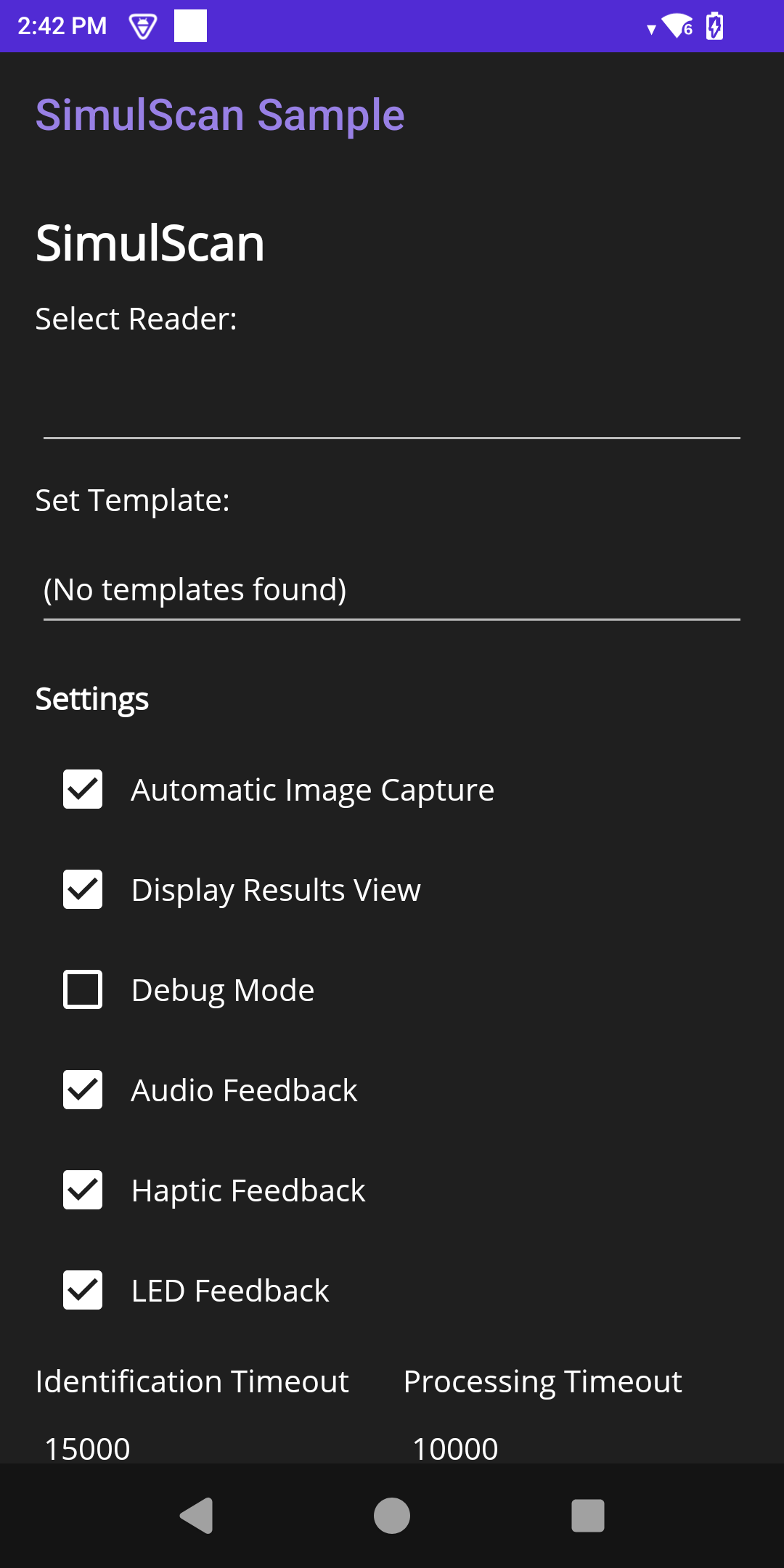
| Select Reader | Provides a dropdown list to select from the supported SimulScan reader devices. |
| Set Template | Provides a dropdown list to select and apply the on-device SimulScan template. |
| Settings | Provides checkboxes to configure Automatic Image Capture, Display Results View, Debug Mode, Audio Feedback, Haptic Feedback, and LED Feedback. |
| Identification / Processing Timeout | Provides numeric fields (in ms) to control the form identification and processing timeouts. |
| Read | Applies the configuration and initiates a form read operation on the selected reader. |
| Stop Read | Cancels an in-progress read. |
Loading the Sample Application
- Choose a sample and click See Details.
- Click Download.
IMPORTANT:Extract the downloaded project zip file toC:\(or to the root of an alternate drive).- Navigate to the root of the unzipped project folder and double-click the .sln file to load the project in the default IDE.
Alternatively, launch the preferred IDE and load the project via the File > Open menu.
Running the Sample
Visual Studio detects the connected USB device and displays the device name next to the Play button. Press the Play button next to the device name. The IDE builds, deploys and starts the sample app on the device.
Using the Sample App
- Application Launch and EMDK Verification: Launch the MAUISimulScanSample app on the Zebra mobile computer. The application automatically performs EMDK initialization, enumerates the supported readers and lists the on-device templates. Confirm successful initialization via the status message. (Note: If no templates are deployed, the Set Template field indicates that no templates were found.)
- Configure the Capture: Select a reader and template from the respective dropdown menus, adjust the desired settings (such as Automatic Image Capture, Display Results View, Debug Mode, Audio/Haptic/LED Feedback), and specify the Identification and Processing timeouts (in milliseconds) if required.
- Capture and Process the Form: Tap Read and aim the device camera at the target form to capture it. Tap Stop Read to cancel an in-progress capture session. Once the form is successfully processed, the app opens the Results screen to display the Name, Value, and Data Type of each captured region.