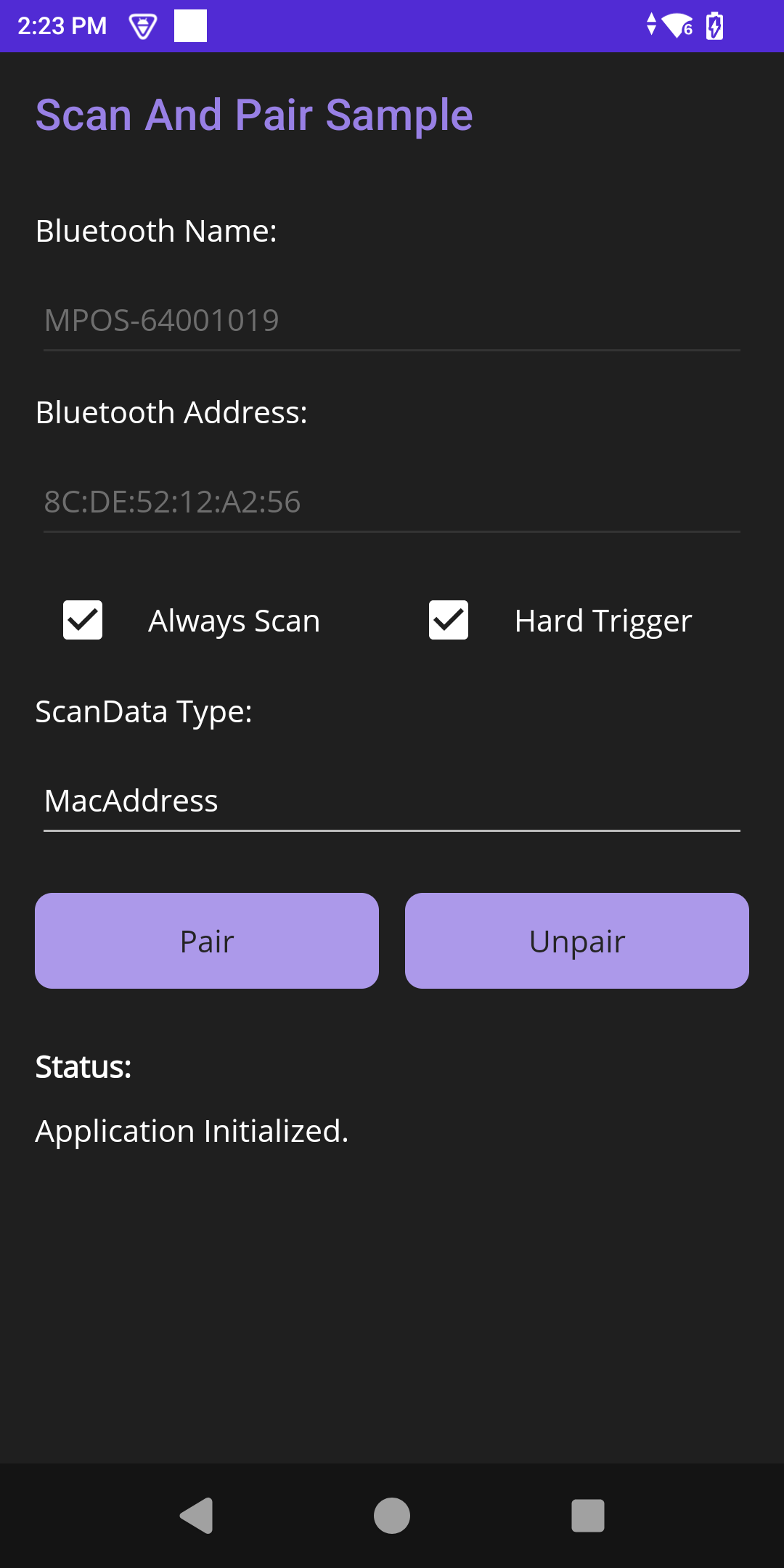
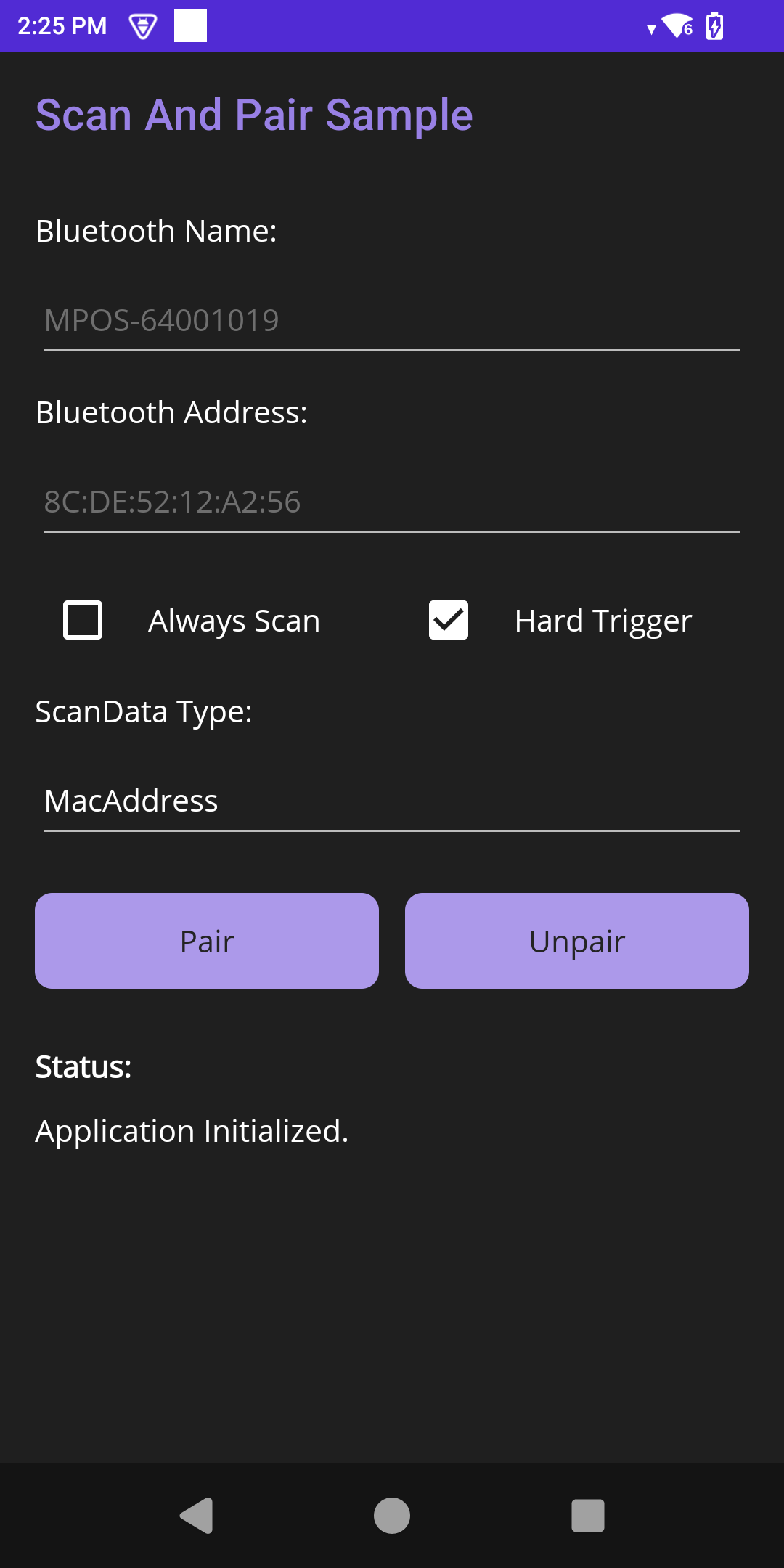
Overview
The MAUIScanAndPairSample demonstrates how to leverage Zebra’s EMDK (Enterprise Mobility Development Kit) within a modern .NET MAUI application to pair and unpair Bluetooth peripherals by scanning a barcode on Zebra Android mobile computers. This sample application showcases core functionalities of the Scan-and-Pair Manager API, including:
- Scan-to-Pair: Pairs a Bluetooth device by scanning a barcode that encodes a MAC address or device name.
- Always Scan vs. Explicit Device: Obtains the target device by scanning a barcode, or pairs a specific Bluetooth Name or Address entered manually.
- Trigger Configurations: Selects a physical Hardware Trigger (HARD) or a Software Trigger (SOFT) for the pairing scan.
- Scan Data Type: Specifies how the scanned barcode is interpreted: MacAddress, DeviceName, or Unspecified.
- Scan-and-Unpair: Removes an existing Bluetooth pairing using the same scan workflow.
- Status Notification: Reports the real-time state (Waiting, Scanning, Discovering, Paired, Unpaired) to the UI.
Requirements
To build, deploy, and run this sample, ensure the development environment and target hardware meet the following specifications:
- Framework: .NET MAUI (.NET 10 or later)
- Target OS: Zebra device running Android 11, 13, 14, 15 or later
- EMDK Component: Zebra EMDK for MAUI/Xamarin 11.1 or later
- Development Environment: Visual Studio 2026 or later configured with the .NET Multi-platform App UI development workload.
- Permissions:
com.symbol.emdk.permission.EMDK declared in the Android manifest.
Settings & Actions
| Action / Setting |
Description |
| Bluetooth Name |
Specifies the target device name. This field is editable only when Always Scan is unchecked. |
| Bluetooth Address |
Specifies the target device MAC address. This field is editable only when Always Scan is unchecked. |
| Always Scan |
When enabled, obtains the target pairing device by scanning a barcode. When disabled, uses the manually entered Bluetooth Name and Address. |
| Hard Trigger |
When enabled, uses the physical hardware trigger (HARD). When disabled, uses the software trigger (SOFT). |
| ScanData Type |
Specifies how the scanned data is interpreted: MacAddress, DeviceName, or Unspecified. |
| Pair |
Initiates a scan-and-pair operation using the configured options (pairing PIN 0000). |
| Unpair |
Initiates an unpair operation to remove an existing device pairing. |
Loading the Sample Application
- Choose a sample and click See Details.
- Click Download.
IMPORTANT: Extract the downloaded project zip file to C:\ (or to the root of an alternate drive).- Navigate to the root of the unzipped project folder and double-click the .sln file to load the project in the default IDE.
Alternatively, launch the preferred IDE and load the project via the File > Open menu.
Running the Sample
Visual Studio detects the connected USB device and displays the device name next to the Play button. Press the Play button next to the device name. The IDE builds, deploys and starts the sample app on the device.
Using the Sample App
- Application Launch and EMDK Verification: Launch the MAUIProfilePowerMgrSample app on the Zebra mobile computer. The application automatically performs asynchronous EMDK initialization. Confirm successful initialization via the status message.
- Configure Pairing Options:
- Always Scan: Enable to automatically populate the target device's Bluetooth Name and Address fields by scanning a barcode. Disable to manually input the Bluetooth Name and Address.
- Hard Trigger: Enable to activate the physical scanner trigger. Disable to use the software trigger.
- ScanData Type: Select MacAddress, DeviceName, or Unspecified depending on structure of the scanned barcode data.
- Scan and Pair: Tap Pair. Verify the status message, and when prompted, press the scanner trigger to scan the device's pairing barcode. During the device discovery process, the Bluetooth Name and Address fields are auto-populated. A confirmation message displays when pairing is successful.
- Scan and Unpair: Tap Unpair and scan the same barcode to remove the paired device. A confirmation message displays when the device is successfully unpaired.