Overview
The MAUISAMSample demonstrates how to leverage Zebra’s EMDK (Enterprise Mobility Development Kit) within a modern .NET MAUI application to work with Secure Access Modules (SAMs) and NFC on Zebra Android mobile computers. This sample application showcases core functionalities of the SAM Manager API, including:
- SAM Enumeration: Lists the Secure Access Modules present in the device's SAM slots via the SAMManager API.
- Version Retrieval: Connects to each SAM, sending a get-version APDU (Transceive) and disconnects.
- NFC Tag Detection: Detects NFC tags via foreground dispatch and classifies them (such as NDEF, Felica, MIFARE Classic/Plus/DESFire).
- SAM Compatibility: Reports which present SAM is compatible with the detected NFC tag.
- EMDK Initialization & Lifecycle: Creates and releases the EMDKManager in alignment with the Android app lifecycle.
Requirements
To build, deploy, and run this sample, ensure the development environment and target hardware meet the following specifications:
- Framework: .NET MAUI (.NET 10 or later)
- Target OS: Zebra device running Android 11, 13, 14, 15 or later
- EMDK Component: Zebra EMDK for MAUI/Xamarin 11.1 or later
- Development Environment: Visual Studio 2026 or later configured with the .NET Multi-platform App UI development workload.
- Permissions:
com.symbol.emdk.permission.EMDKdeclared in the Android manifest.
Settings & Actions
| Action / Setting | Description |
|---|---|
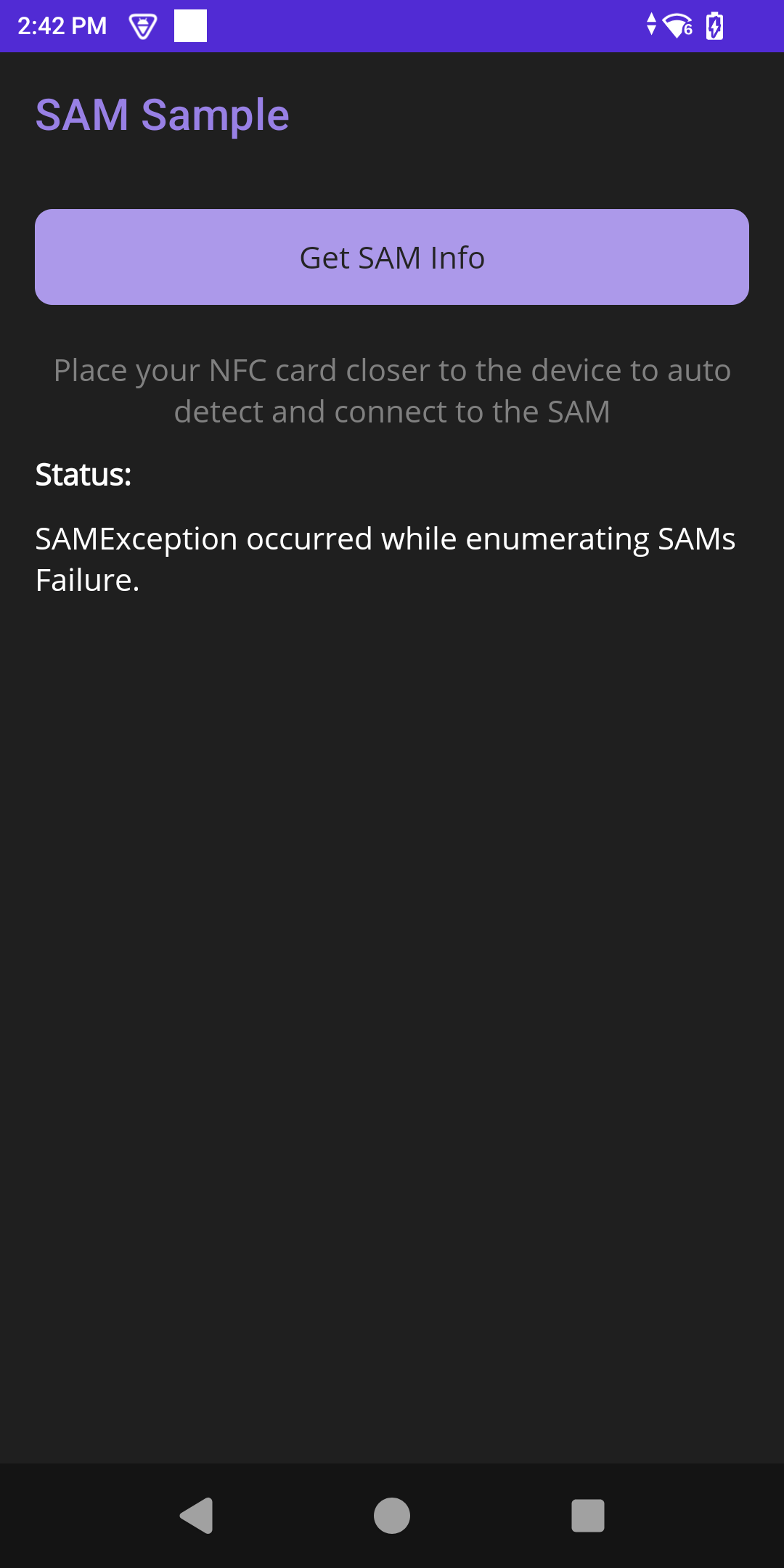
| Get SAM Info | Enumerates the present SAMs and retrieves the version of each (by executing connect, transceive, then disconnect). |
| NFC Auto-Detect | Detects an NFC card when placed near the device and reports the compatible SAM (without requiring button input). |
Loading the Sample Application
- Choose a sample and click See Details.
- Click Download.
IMPORTANT:Extract the downloaded project zip file toC:\(or to the root of an alternate drive).- Navigate to the root of the unzipped project folder and double-click the .sln file to load the project in the default IDE.
Alternatively, launch the preferred IDE and load the project via the File > Open menu.
Running the Sample
Visual Studio detects the connected USB device and displays the device name next to the Play button. Press the Play button next to the device name. The IDE builds, deploys and starts the sample app on the device.
Using the Sample App
- Application Launch and EMDK Verification: Launch the MAUISAMSample app on the Zebra mobile computer. The application automatically performs EMDK initialization, enumerates the present SAMs, and retrieves the version of each. Confirm successful initialization via the status message. (Note: An exception occurs if no SAM is inserted.)
- Refresh SAM Information: Tap Get SAM Info to re-enumerate the SAMs and retrieve their versions. The Status area displays the type and version for each detected SAM slot.
- Detect an NFC Tag: Place an NFC card near the NFC antenna of the device. The application automatically detects the tag (e.g., NDEF, Felica, MIFARE) and displays which of the present SAMs is compatible with the tag.