Overview
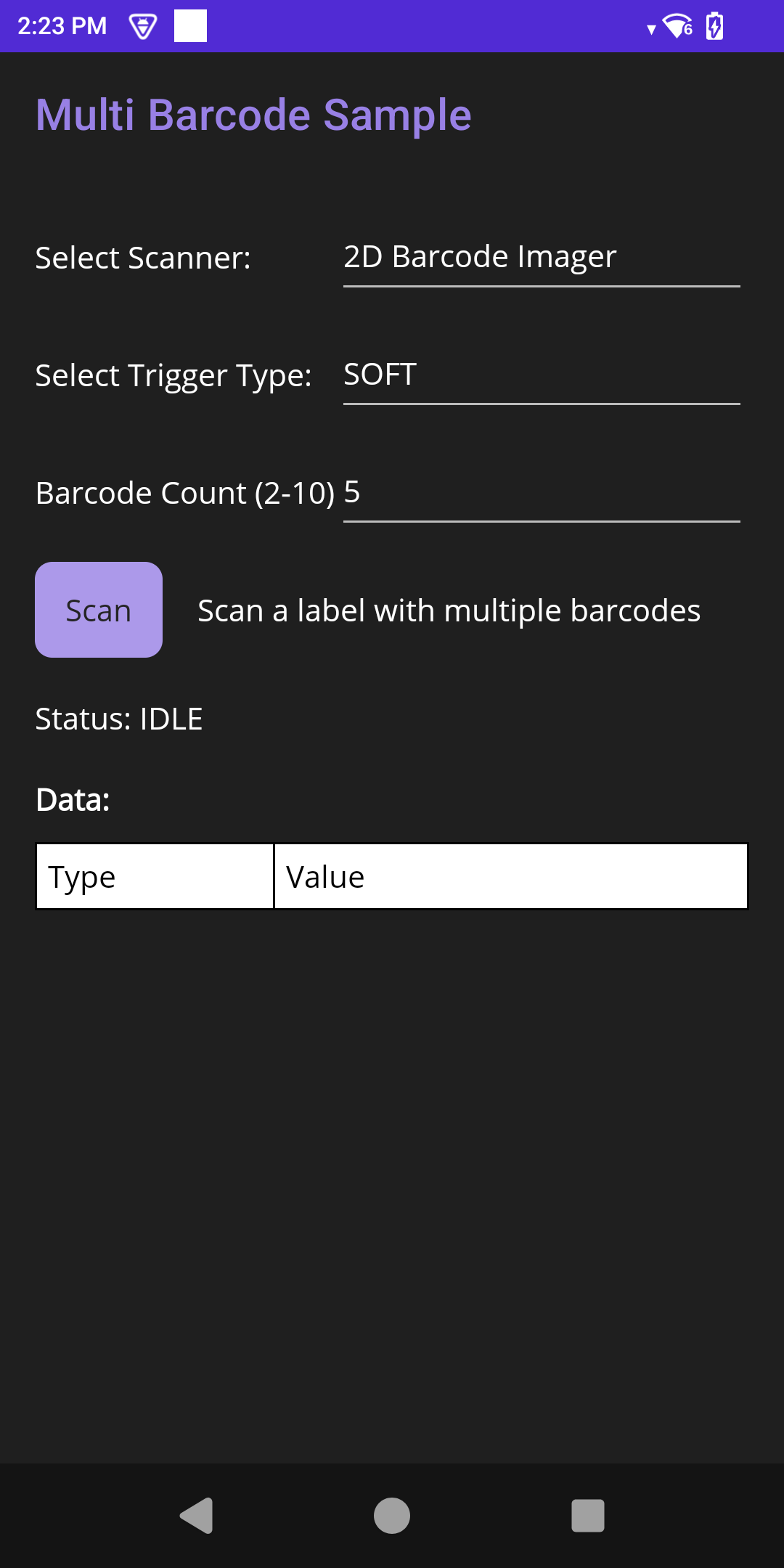
The MAUIMultiBarcodeSample demonstrates how to leverage Zebra’s EMDK (Enterprise Mobility Development Kit) within a modern .NET MAUI application to capture multiple barcodes in a single scan on Zebra Android mobile computers. This sample application showcases core functionalities of the Barcode Manager API:
- Scanner Enumeration: Dynamically detects and selects from available hardware scanner devices (e.g., Internal Imager, Camera, Bluetooth Scanners).
- Multi-Barcode Scan Mode: Configuring the Imager to decode multiple barcodes (2-10) in a single trigger press.
- Trigger Configurations: Implements both physical Hardware Trigger (HARD) and Software-initiated Trigger (SOFT) scans.
- Data Handling: Asynchronously captures and renders decoded barcode data and its corresponding symbology (e.g., CODE-128, QR Code, EAN-13).
- State Management: Enables, disables, and releases scanner resources to align with the Android App Lifecycle.
- Status Notification: Monitors and outputs the real-time device scan state and initial EMDK connection status.
Requirements
To build, deploy, and run this sample, ensure the development environment and target hardware meet the following specifications:
- Framework: .NET MAUI (.NET 10 or later)
- Target OS: Zebra device running Android 11, 13, 14, 15 or later
- EMDK Component: Zebra EMDK for MAUI/Xamarin 11.1 or later
- Development Environment: Visual Studio 2026 or later configured with the .NET Multi-platform App UI development workload.
- Permissions:
com.symbol.emdk.permission.EMDK declared in the Android manifest.
Settings & Actions
| Action / Setting |
Description |
| Select Scanner |
Displays a dropdown menu of all discovered scanner devices connected to or integrated with the hardware. |
| Select Trigger Type |
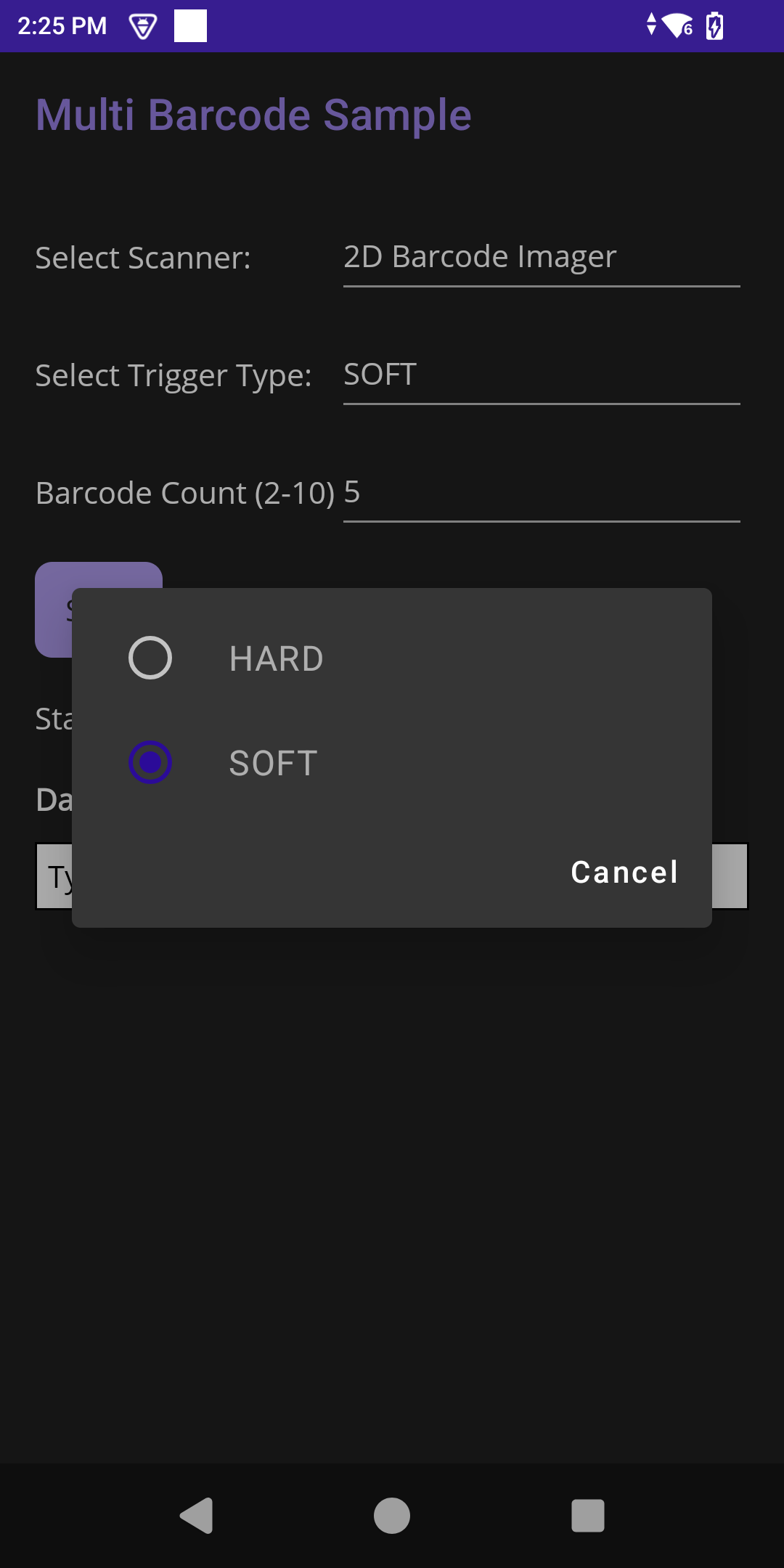
Specifies the scan activation behavior:
• HARD: Pulling the physical gun or side trigger activates the scan beam.
• SOFT: Tapping the scan button activates the beam.
|
| Barcode Count (2-10) |
Numeric field defining how many barcodes the imager attempts to decode in a single multi-barcode read. Values must be between 2 and 10. |
| Scan |
Submits a read request to the active scanner using the configured trigger type and barcode count. |
Loading the Sample Application
- Choose a sample and click See Details.
- Click Download.
IMPORTANT: Extract the downloaded project zip file to C:\ (or to the root of an alternate drive).- Navigate to the root of the unzipped project folder and double-click the .sln file to load the project in the default IDE.
Alternatively, launch the preferred IDE and load the project via the File > Open menu.
Running the Sample
Visual Studio detects the connected USB device and displays the device name next to the Play button. Press the Play button next to the device name. The IDE builds, deploys and starts the sample app on the device.
Using the Sample App
- Application Launch and EMDK Verification: Launch the the MAUIMultiBarcodeSample app on the Zebra mobile computer. The application automatically performs asynchronous EMDK initialization and enumerates the available scanners. Confirm successful initialization via the status message. A default scanner is selected based on device availability.
- Configure Scanner Selection and Settings:
- Select Scanner: Select the scanner (e.g., “2D Barcode Imager”).
- Select Trigger Type: Select either “HARD” or “SOFT” trigger mode.
- Barcode Count (2-10): Enter the number of barcode to capture in a single read session.
- Activate and Perform a Scan: Press the trigger or tap the scan button to initiate a barcode scan. Upon detection, the decoded barcode appears in the data table along with the barcode type (symbology). The Status field reflects the current scanner state (e.g., Idle or Scanning).