About SMS for Linux

Overview

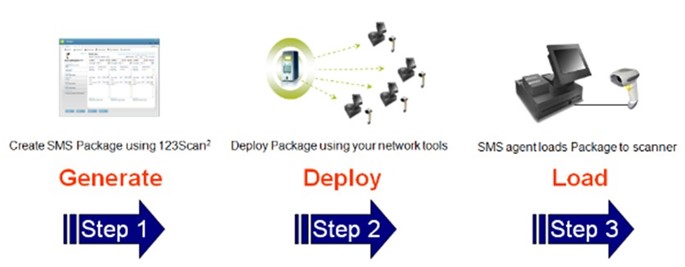
Figure 1: Steps in the SMS Process

The Scanner Management Solution (SMS) enables your enterprise to remotely manage its Zebra scanners. In addition to accessing asset tracking information and statistics, the SMS (which runs on the scanner’s host PC) can remotely set parameters and update firmware. Providing your enterprise maximum flexibility, the SMS can operate in an automated, unattended manner with no operator intervention required.


Supported Devices

For the compatible devices list, please visit following page.

https://www.zebra.com/us/en/support-downloads/software/utilities/scanner-management-solution-for-linux.html

Supported Linux Distributions

SMS for Linux latest version supporting following distributions.
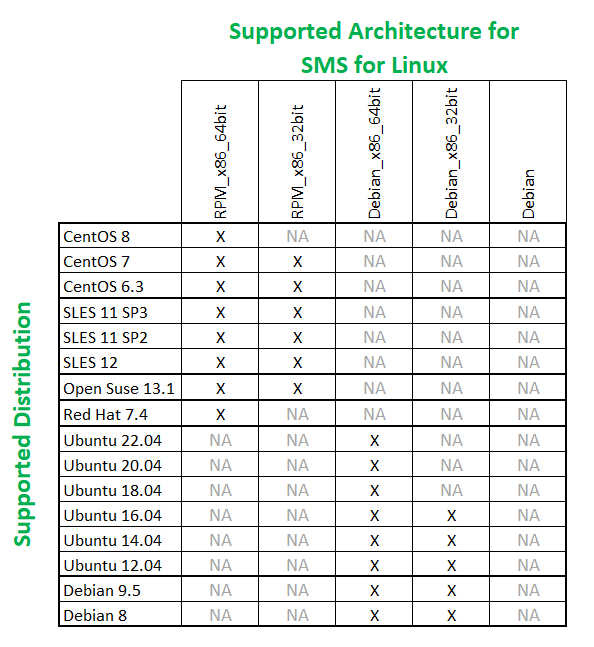
Figure 2: Supported Linux Distributions


Version History

Version 1.3.1-29 - 10/2026

  1. Added - Rocky Linux 10 support.
  2. Added support to use Staging files to update firmware and configuration of scanners in a single step.
  3. Bug Fix - Fixed the issue of configuration update that occurred when using SMS packages containing special characters in the Configuration Notes field.
  4. Bug Fix - Fixed the issue of SMS crash due to a Segmentation Fault after failing to connect to the CoreScanner driver daemon.

Version 1.3.1-24 - 01/2026

  1. Bug Fix - Fixed an application crash observed if a cradle with a paired Bluetooth scanner is attached to MP7000/SP72 aux port while performing an SMS update.
    NOTE: SMS flashing on cradle with paired Bluetooth scanner connected to MP7000/SP72 is not supported.

Version 1.3.1-23 - 10/2023

  1. Bug Fix - Fixed rare comm. protocol switching issues, seen during firmware update.

Version 1.3.1-22 - 07/2023

  1. Bug Fix - Corrected hash value generation of SMS configuration file when notes section contains formatted texts (newline, tab, etc.).

Version 1.3.1-21 - 01/2023

  1. Added security feature - Before loading an SMS package, an integrity check is performed on the package's contents.

Version 1.3.1-19 - 04/2022

  1. Enhanced SMS - Added ability to force reload of configuration settings, even if already present. Setting available in 123Scan SMS wizard Name and Notes screen.
  2. Bug Fix - Resolved issue on scanner not switching to the correct management mode during the firmware and configuration update retry.

Version 1.3.1-17 - 10/2021

  1. Added support for SNAPI without Imaging scanner host mode.
  2. Bug Fix - Resolved issue on firmware v24 update for MP7 scanner using the SMS package.
  3. Bug Fix - Resolved issue on setting beeper volume and beeper control.

Version 1.3.1-13 - 10/2020

  1. Bug Fix - firmware update shows the correct scanner host mode when the scanner in IBMHID.

Version 1.3.1-12 - 04/2020

  1. Added asset information (model number, serial number, date of manufacture, firmware version, configuration file name) to SMS log file. A default package is now present in the download folder. The default package causes the logging of asset information at SMS startup, even if the customer has not loaded a SMS Package.
  2. A default package is now present in the download folder.

Version 1.3.1-9 - 10/2019

  1. Added CentOS 7.3 support.
  2. Added Debian 9.5 support.
  3. Added C++ 11 support.

Version 1.3.1-7 - 07/2019

  1. Added ability to execute the SMS using an external Java program.

Version 1.3.0-0 - 11/2018

  1. Added Retry logic, if firmware update fails, will attempt to reload firmware up to 3 times.
  2. Support added for following distributions
    1. CentOS 6.0 32bit.
    2. SLES 11 SP2 32bit.
    3. SLES 11 SP3 64bit and 32bit.
    4. Open SUSE 13.1 64bit and 32bit.
    5. Redhat 6.3 32bit.
    6. Ubuntu 12.04 32bit and 64bit.
    7. Debian 8 64bit and 32bit.

Version 1.2.0-0 - 08/2018

  1. Firmware/Configuration update through management mode IBMHH.
  2. Firmware/Configuration update for cascaded and Bluetooth scanners.
    1. Direct connected cradle paired Bluetooth scanner.
    2. Direct connected MP6000/MP7000 with auxiliary scanner.
    3. Multiple directly connected scanner support (up to 5devices).
  3. Supported distributions
    1. SUSE Linux Enterprise Server 12, 64bit architectures.
    2. Ubuntu 14.04, 64bit architecture.
    3. Ubuntu 14.04, 32bit architecture.

Version 1.1.0-0 - 06/2017

  1. Scanner Management Solution support for Linux CoreScanner driver v4.0.

Version 1.0.0-0 - 04/2017

  1. Initial release of the Scanner Management Solution.
  2. Firmware update for corded scanners through SNAPI.
  3. Configuration push for corded scanners through SNAPI.
  4. Parameter barcode scanning enabling/disabling through SNAPI.
  5. Assets tracking information before/after scanner management.

Installation and Configuration

Overview

The Scanner Management Solution (SMS) for Linux enables the management of Zebra Scanners connected to the host computer. SMS does following operations by executing as an application.

  1. Provide reports/logs with scanner’s asset information.
  2. Provide scanner statistics information.
  3. Configuration push.
  4. Firmware update.
  5. Diagnostics logging for scanner management operations.

SMS can be executed as an application or crone job. User intervention can be minimized by setting a Cron-Job in the system.


Prerequisites

  1. CoreScanner driver for Linux version 4.0.0 or above should be installed in the system.
  2. Package manager commands for the system (rpm or dpkg).
  3. Minimum hardware requirements,

    1. Pentium Dual-Core E214 1.6GHz or Pentium Mobile Dual-Core T2060 or Pentium Celeron E1200 1.6GHz
    2. 2GB RAM 1.2 GB free hard drive space.
    3. USB port, 1.1 or higher, for the connection of USB Scanners.

Installation and Package Types

RPM packages can be installed using "rpm" command (e.g. rpm -i <package name>).

Debian packages can be installed using “dpkg” command (e.g. dpkg -i <package name>).

Please refer the supported distributions matrix for the latest updates.


Provide External Configurations for SMS Execution

SMS has introduced a way to introduce some settings for the tool using an external configuration file. Configuration will be introduced by developers considering the user requests. Configuration file is an XML file and will be installed into /usr/share/zebra-scanner/sms/config/sms-configuration.xml.

Initially, following configuration is available to provide.


<?xml version="1.0" encoding="UTF-8"?>
<configuration>
    <tool-configuration>
        <unzip-program-path>/usr/bin/unzip</unzip-program-path>
    </tool-configuration>
</configuration> 


Launch SMS as an Application

CoreScanner daemon should be started before launching the SMS as an application. Following steps help to launch the SMS as an application. All commands should be run as the supper user. Example commands are given for Ubuntu 12.04.

  1. Verify whether the cscore (daemon for CoreScanner driver) is already running in the system and "service" terminal command can be used.

    
    $ service cscored status


    If cscore is not started, start it using below command.

    
    $ sudo service cscored start 
    
    
  2. Copy relevant configuration/management SMS package generated by 123Scan into the download directory of the SMS.

    
    $ sudo cp <SMS_Package>.smspkg /usr/share/zebra-scanner/sms/download/
    
    
  3. Now the system is ready to launch SMS as an application. SMS installation is facilitated to execute it as a terminal command. Execute below command to start SMS as an application.

    
    $ sudo gnusms


SMS Logs

End User Logs

End user log is saved to /usr/share/zebra-scanner/sms/log directory, currently this directory is not accessible for all users and administrator can change the privileges using "chmod". This log contains the summary report of the execution. End user log contains scanner asset information and configuration update information in remote management operation execution order.

  1. Scanner asset information when starting the SMS for the all connected scanners.
  2. Remote management operation information at the operation start and the after.
  3. Scanner asset information after completing the remote management.

End User Logs Sample


11-09-2018_16:02:50     SMS v1.2 started as an application. 
11-09-2018_16:03:08     Scanner Assets ID:2; Model:CR8178-SC100F4WW; SN:17305010508442;  DoM:04NOV17; Firmware:PAACYS00-001-R09; Config name:C2_001-R07_IBMHH; Protocol:IBMHID
11-09-2018_16:03:08     Scanner Assets ID:3; Model:DS8178-SR0F007ZZWW; SN:17181010502100; DoM:01JUL17; Firmware:PAACXS00-001-R07; Config name:C2_001-R07_IBMHH; Protocol:IBMHID
11-09-2018_16:03:08     Scanner Assets ID:4; Model:DS8108-SR00006ZZWW; SN:17342010504059; DoM:10DEC17; Firmware:PAACZS00-002-R01; Config name:MS_A003; Protocol:SNAPI
11-09-2018_16:03:08     Executing device group "Device Group 1" ID:4; Model:DS8108-SR00006ZZWW; SN:17342010504059  ; DoM:10DEC17; Firmware:PAACZS00-002-R01; Config name:MS_A003; Protocol:SNAPI
11-09-2018_16:03:15     Initialized firmware update: ID:4; Model:DS8108-SR00006ZZWW; SN:17342010504059; DoM:10DEC17; Firmware:PAACZS00-002-R01; Config name:MS_A003; Protocol:IBMHID
11-09-2018_16:03:18     Executing device group "Device Group 1" ID:2; Model:CR8178-SC100F4WW; SN:17305010508442; DoM:04NOV17; Firmware:PAACYS00-001-R09; Config name:C2_001-R07_IBMHH; Protocol:IBMHID
11-09-2018_16:03:18     Device not compatible with: "Device Group 1" ID:2; Model:CR8178-SC100F4WW; SN:17305010508442; DoM:04NOV17; Firmware:PAACYS00-001-R09; Config name:C2_001-R07_IBMHH; Protocol:IBMHID
11-09-2018_16:03:19     Executing device group "Device Group 1" ID:3; Model:DS8178-SR0F007ZZWW; SN:17181010502100; DoM:01JUL17; Firmware:PAACXS00-001-R07; Config name:C2_001-R07_IBMHH; Protocol:IBMHID
11-09-2018_16:03:19     Device not compatible with: "Device Group 1" ID:3; Model:DS8178-SR0F007ZZWW; SN:17181010502100; DoM:01JUL17; Firmware:PAACXS00-001-R07; Config name:C2_001-R07_IBMHH; Protocol:IBMHID
11-09-2018_16:03:19     Completed device group execution: "Device Group 1" ID:3; Model:DS8178-SR0F007ZZWW; SN:17181010502100; DoM:01JUL17; Firmware:PAACXS00-001-R07; Config name:C2_001R07_IBMHH; Protocol:IBMHID
11-09-2018_16:03:24     Completed device group execution"Device Group 1" ID:2; Model:CR8178-SC100F4WW; SN:17305010508442; DoM:04NOV17; Firmware:PAACYS00-001-R09; Config name:C2_001R07_IBMHH; Protocol:IBMHID
11-09-2018_16:25:34     Firmware update succeeded: ID:4; Model:DS8108-SR00006ZZWW; SN:17342010504059; DoM:10DEC17; Firmware:PAACZS00-002-R02; Config name:MS_A003; Protocol:IBMHID
11-09-2018_16:25:34     Initialized configuration push: ID:4; Model:DS8108-SR00006ZZWW; SN:17342010504059; DoM:10DEC17; Firmware:PAACZS00-002-R02; Config name:MS_A003; Protocol:IBMHID
11-09-2018_16:25:52     Configuration push succeeded: ID:4; Model:DS8108-SR00006ZZWW; SN:17342010504059; DoM:10DEC17; Firmware:PAACZS00-002-R02; Config name:MS_A003; Protocol:IBMHID
11-09-2018_16:26:04     Completed device group execution"Device Group 1" ID:4; Model:DS8108-SR00006ZZWW; SN:17342010504059; DoM:10DEC17; Firmware:PAACZS00-002-R02; Config name:MS_A003; Protocol:SNAPI
11-09-2018_16:26:07     Scanner Assets ID:2; Model:CR8178-SC100F4WW; SN:17305010508442; DoM:04NOV17; Firmware:PAACYS00-001-R09; Config name:C2_001-R07_IBMHH; Protocol:IBMHID
11-09-2018_16:26:07     Scanner Assets ID:3; Model:DS8178-SR0F007ZZWW; SN:17181010502100; DoM:01JUL17; Firmware:PAACXS00-001-R07; Config name:C2_001-R07_IBMHH; Protocol:IBMHID
11-09-2018_16:26:07     Scanner Assets ID:4; Model:DS8108-SR00006ZZWW; SN:17342010504059; DoM:10DEC17; Firmware:PAACZS00-002-R02; Config name:MS_A003; Protocol:SNAPI
11-09-2018_16:26:07     SMS successfully completed

Debug Logs

Engineering log contains entire execution information which is use full to diagnose the failures. This log will be saved to /var/log/gnusms directory.


Asset Package Support

Asset package (startup package) can be used to get asset info of the connected scanners. When SMS is executed with asset package assert information of all connected scanners will be printed on console. Also, a log file with the same output will be created in "/usr/share/zebra-scanner/sms/log/" directory.

Steps to Enable Assets

  1. Copy asset package (Sms_Application_Startup_Package.smspkg) to sms download folder (/usr/share/zebra-scanner/sms/download).
  2. Execute SMS as super user.

Sample Logs


03-12-2020_15:26:07     SMS v1.3 started as an application.
03-12-2020_15:26:49     Scanner Assets ID:1; Model:DS9908-SR00004ZZWW; SN:18282523080961  ; DoM:09OCT18; Firmware:PAAECS00-002-R03; Config name:Factory Default; Protocol:SNAPI
03-12-2020_15:26:49     Scanner Assets ID:2; Model:CR8178-SC100F4WW  ; SN:17305010508458  ; DoM:04NOV17; Firmware:PAACYS00-002-R02; Config name:ParaBarDisbl_HKB; Protocol:HIDKB
03-12-2020_15:26:49     Scanner Assets ID:3; Model:DS8178-SR0F006ZMWW; SN:17320010502508  ; DoM:17NOV17; Firmware:PAACXS00-004-R01; Config name:Factory Default; Protocol:HIDKB
03-12-2020_15:26:49     SMS successfully completed


How to Create a cronjob for SMS

SMS can be executed as a scheduled task by adding a Cronjob in the system. Administrator can add the cronjob by doing following steps.

  1. Create/open a file using vim editor and put below content. Use “cronjobsms” for the file name. 0 5 * * 1 gnusms # 0-minutes, 5-hours(24h), *-all days in a month, *-all months, 1-Monday(0Sunday). This will schedule to execute SMS on every Monday 05:00AM
  2. Save the file. Then the file is available on your current directory which is having the content for a cronjob. Execute below command to add it to CronTab.

NOTE: Administrator can use his own way to add the cronjob.


"How To" Videos

Creating a SMS package using 123Scan.

Introduction to SMS.


Download SMS for Linux

IMPORTANT: Zebra recommends using the latest release whenever possible.


To Download SMS for Linux:

  1. Visit the Zebra SMS for Linux download page and select the desired download(s).
  2. Proceed to the SMS for Linux release notes for the version details.