** Firmware update and configuration load are slower in IBM modes compared to USB SNAPI.
If your application requires data in HIDKB format, enable the Simulated HID Keyboard Output feature in Zebra CoreScanner for Linux.
Simulated HID Keyboard Output allows scanners in USB-SNAPI, USB-IBM Table-top, USB-IBM Handheld, USB-OPOS or SSI mode to emulate HID Keyboard keystrokes to a host system. It sends the content of the scanned barcode as HID Keyboard keystrokes thus emulating USB-HIDKB scanner mode while continuing to operate in a bi-directional protocol needed to support the CLU.
CLU outputs can be retrieved in XML format by passing 'xml' as an argument at the end of the regular CLU command. This is an optional argument only applicable to the following commands:
Supported CLU command options (performed on scanners that match the filter criteria):
| returnvalues |
| Description |
Obtain CLU status ID mapping / return status values. |
| Example |
./CLU returnvalues
|
| Samples |
$ ./CLU returnvalues

Status ID mappings
Value  Description

0     Generic Success
1     Generic Error
4     Device not available
7     Response timed out for the command
8     Partial success
44    Invalid InXML
88    The Software componenet is already resident in the scanner
89    Invalid configuration file
90    Configuration file is incompatible
91    Syntax validation of configuration file is failed
101   Required Comm Lib is unavailable to support the requested type
104   Incorrect Buffer size
107   Invalid argument
108   Invalid scanner ID
109   Incorrect value for number of Event IDs
110   Event IDs are duplicated
111   Invalid value for Event ID
112   Required device is unavailable
113   Opcode is invalid
114   Invalid value for Type
115   Opcode does not support asynchronous method
116   Device does not support the Opcode
117   Operation failed in device
118   Request failed in corescanner
119   Operation is not supported for auxiliary scanners
120   Device busy
150   CDC scanners not found
151   Unable to open CDC comm port
200   Corescanner is already opened
201   Corescanner is already closed
202   Corescanner is closed
244   Invalid firmware file
245   FW update failed in scanner
246   Failed to read DAT file
247   Firmware update is in progress
248   Firmware update is already aborted
249   Firmware update is aborted
250   Scanner is detached while updating the firmware
|
| list |
| Description |
Lists the connected scanners that match the filter criteria. |
| Example |
./CLU -id "1" list
./CLU -id ",3" list
./CLU -model "MP7*" list
./CLU -model "MP7*, DS81*" list
|
| Samples |
$ ./CLU -id "1" list
Matching scanner list :
    MP7200-MNDLL000WW        id : 1
|
| reboot |
| Description |
Reboots the scanner. |
| Example |
./CLU -model "MP7*" reboot
./CLU -model "MP7*,DS81*" reboot
./CLU -id "1" reboot
./CLU -id "1,3" reboot
|
| Samples |
$ ./CLU -id "1" reboot
    Rebooting MP7200-MNDLL000WW scanner.
|
| assetinfo |
| Description |
Output scanner type, model number, firmware version, serial number and date of manufacture. |
| Example |
./CLU -model "MP72*" assetinfo
./CLU -model "MP72*,DS81*" assetinfo
./CLU -id "1" assetinfo
./CLU -id "1,3" assetinfo
|
| Samples |
$ ./CLU -id "1" assetinfo
<scanners><scanner><id>1</id><model>MP7200-MNDLL000WW</model><type>SNAPI</type><firmware>PAAFES00-003-R00</firmware><serialnumber>23346444552153</serialnumber><DoM>14DEC23</DoM><configname>SNAPI_JS</configname></scanner></scanners>
|
| topology |
| Description |
Obtains the device topology. |
| Example |
./CLU topology
|
| Samples |
$ ./CLU topology
================================
Get Device Topology command success.

Out XML : <outArgs><arg-xml><scanners><scanner type="SNAPI"><scannerID>1</scannerID><serialnumber>23346444552153  </serialnumber><GUID>23346444552153</GUID><VID>05e0</VID><PID>1900</PID><modelnumber>MP7200-MNDLL000WW </modelnumber><DoM>14DEC23</DoM><firmware>PAAFES00-003-R00  </firmware><configname>SNAPI_JS</configname></scanner></scanners></arg-xml></outArgs>
================================
|
| resetscale |
| Description |
If present, reset the scale. |
| Example |
$ ./CLU -id “1” resetscale
|
| Samples |
$ ./CLU -model “MP*” resetscale
Resetting scale of MP7001-LNS0C00US scanner.
|
| switchsnapi temporary |
| Description |
Perform temporary switch of the scanner to 'USB-SNAPI with Imaging' host mode. |
| Example |
./CLU -model "MP7*" switchsnapi temporary
./CLU -model "DS81*,MP7*" switchsnapi temporary
./CLU -id "1" switchsnapi temporary
./CLU -id "1,3" switchsnapi temporary
|
| Samples |
$ ./CLU -model “MP*,CR*” switchsnapi temporary
Switching MP7001-LNS0C00US scanner to SNAPI host mode.
Switching CR8178-PC100F4WW scanner to SNAPI host mode.
|
| switchsnapi |
| Description |
Performs persistent switch of the scanner to 'USB-SNAPI with Imaging' host mode. |
| Example |
./CLU -model "MP7*" switchsnapi
./CLU -model "DS81*,MP7*" switchsnapi
./CLU -id "1" switchsnapi
./CLU -id "1,3" switchsnapi
|
| Samples |
$ ./CLU -model “MP*,CR*” switchsnapi
Switching MP7001-LNS0C00US scanner to SNAPI host mode.
Switching CR8178-PC100F4WW scanner to SNAPI host mode.
|
| switchibmhid |
| Description |
Perform persistent switch of the scanner to USB-IBMHID host mode. |
| Example |
./CLU -model "MP7*" switchibmhid
./CLU -model "DS81*,MP7*" switchibmhid
./CLU -id "1" switchibmhid
./CLU -id "1,3" switchibmhid
|
| Samples |
$ ./CLU -model “CR*” switchibmhid
Switching CR8178-PC100F4WW scanner to IBMHID host mode.
|
| switchibmtt |
| Description |
Perform persistent switch of the scanner to USB-IBMTableTop host mode. |
| Example |
./CLU -model "MP7*" switchibmtt
./CLU -model "DS81*,MP7*" switchibmtt
./CLU -id "1" switchibmtt
./CLU -id "1,3" switchibmtt
|
| Samples |
$ ./CLU -model “MP*” switchibmtt
Switching MP7001-LNS0C00US scanner to IBMTableTop host mode.
|
| getallattributes |
| Description |
Retrieves all attribute_ids of the scanner. |
| Example |
./CLU -id "1" getallattributes
|
| Samples |
$ ./CLU -id "1" getallattributes > /home/admin/Temp/MP72_attributes_all.txt
|
| getattribute |
| Description |
Retrieves the data type and the value of the attribute ID. Multiple attribute_ids can be queried using a comma-separated list. |
| Example |
./CLU -id "1" getattribute "1,3,4,6"
|
| Sample 1: specific attribute |
$ ./CLU -id "1" getattribute "616"
Attribute ID:616. Data Type:S. Value:SNAPI_JS
|
| Sample 2: list of attributes |
$ ./CLU -id "1" getattribute "1,3,4,6"
Attribute ID:1. Data Type:F. Value:True
Attribute ID:3. Data Type:F. Value:True
Attribute ID:4. Data Type:F. Value:True
Attribute ID:6. Data Type:F. Value:True
|
| setattribute |
| Description |
Sets attribute values temporarily in the scanner. Values for attribute_id, data_type and attribute_value must be comma-separated inside double quotes. |
| Example |
./CLU -id "1" setattribute "28,B,10"
|
| Sample (only set, not stored, lost after a reboot) |
$ ./CLU -id "1" setattribute "616,S,SNAPI_JS"
set attribute for MP7200-MNDLL000WW ,Attribute ID:616
SetAttribute command success.
|
| storeattribute |
| Description |
Stores attribute values persistently in the scanner. Values for attribute_id, data_type and attribute_value must be comma-separated inside double quotes. |
| Example |
./CLU -model "DS81*" storeattribute "28,B,10"
|
| Sample (stored permanently, even after a reboot) |
$ ./CLU -id "1" storeattribute "616,S,DS81_FRONTEND"
store attribute for MP7200-MNDLL000WW ,Attribute ID:616
StoreAttribute command success.
|
| updateconfig filepath |
| Description |
Updates the scanner configuration using a 123Scan configuration file. The configuration absolute file path must be inside double quotes. |
| Example |
./CLU -model "MP72*" updateconfig "/home/ConfigFile.scncfg"
./CLU -id "1" updateconfig "/home/ConfigFile.scncfg"
|
| Samples |
$ ./CLU -id "1" updateconfig "/home/admin/Temp/ConfigFile_MP7200_SCO.scncfg"
Configuration update for MP7200-MNDLL000WW
configuration update success.
|
| updatefirmware filepath |
| Description |
Updates the scanner firmware using a DAT file. Absolute file path must be inside double quotes. |
| Example |
./CLU -model "MP72*" updatefirmware "/home/firmwarefile.dat"
./CLU -id "1" updatefirmware "/home/firmwarefile.dat"
|
| Samples |
$ ./CLU -id "1" updatefirmware /home/admin/Temp/Firmware/CAAFES00-003-R04D0.DAT
firmware update started for MP7200-MNDLL000WW
Please Wait.......
Scanner rebooting..
Firmware update process completed.
|
| updatefirmware filepath debug |
| Description |
Updates the scanner firmware using a DAT file with update event notifications. Absolute file path must be inside double quotes. |
| Example |
./CLU -model "MP72*" updatefirmware "/home/firmwarefile.dat" debug
./CLU -id "1" updatefirmware "/home/firmwarefile.dat" debug
|
| Samples |
$ ./CLU -model "MP7001*" updatefirmware /home/admin/temp/ CAADGS00-006-R02D0.DAT debug
firmware update started for MP7001-LNS0C00US
Please Wait.......
Scanner ID: 1
Model Number: MP7001-LNS0C00US
Serial Number: 20175010559536
Firmware Version: PAADGS00-006-R01

Out XML
<outArgs><scannerID>1</scannerID><arg-xml><sess_start><modelnumber>MP7001-LNS0C00US  </modelnumber><serialnumber>20175010559536  </serialnumber><GUID>20175010559536</GUID><maxcount>20698</maxcount><status>0</status></sess_start></arg-xml></outArgs>
Out XML
<outArgs><scannerID>1</scannerID><arg-xml><dl_start><modelnumber>MP7001-LNS0C00US  </modelnumber><serialnumber>20175010559536  </serialnumber><GUID>20175010559536</GUID><software_component>1</software_component><status>1</status></dl_start></arg-xml></outArgs>
.
.
.
Out XML
<outArgs><scannerID>1</scannerID><arg-xml><dl_end><modelnumber>MP7001-LNS0C00US  </modelnumber><serialnumber>20175010559536  </serialnumber><GUID>20175010559536</GUID><software_component>2</software_component><size>0</size><status>0</status></dl_end></arg-xml></outArgs>
Out XML
<outArgs><scannerID>1</scannerID><arg-xml><sess_end><modelnumber>MP7001-LNS0C00US  </modelnumber><serialnumber>20175010559536  </serialnumber><GUID>20175010559536</GUID><status>0</status></sess_end></arg-xml></outArgs>
Scanner rebooting...
Scanner MP7001-LNS0C00US   20175010559536   Detached.
Scanner MP7001-LNS0C00US   20175010559536   Attached.
Scanner ID: 1
Model Number: MP7001-LNS0C00US
Serial Number: 20175010559536
Firmware Version: PAADGS00-006-R02
Firmware update process completed.
|
| updatefirmwarefromplugin filepath |
| Description |
Updates the scanner firmware using a 123Scan plugin file. Absolute file path must be inside double quotes. |
| Example |
./CLU -model "MP72*" updatefirmware "/home/pluginfile.scnplg"
./CLU -id "1" updatefirmware "/home/pluginfile.scnplg"
|
| Samples |
$ ./CLU -id "1" updatefirmwarefromplugin /home/admin/Temp/Plugins/MP7200-COMMON-SR-MODELS-B-006.SCNPLG
firmware update from plugin file started for MP7200-MNDLL000WW
Please Wait.......
Scanner rebooting..
Firmware update process completed.
|
| updatefirmwarefromplugin filepath debug |
| Description |
Updates the scanner firmware using a 123Scan plugin file with update event notifications. Absolute file path must be inside double quotes. |
| Example |
./CLU -model "MP72*" updatefirmware "/home/pluginfile.scnplg" debug
./CLU -id "1" updatefirmware "/home/pluginfile.scnplg" debug
|
| Samples |
$ ./CLU -model "MP7001*" updatefirmwarefromplugin /home/admin/MP7001-COMMON-SR-MODELS-S-040.SCNPLG debug
firmware update from plugin file started for MP7001-LNS0C00US
Please Wait.......
Scanner ID: 1
Model Number: MP7001-LNS0C00US
Serial Number: 20175010559536
Firmware Version: PAADGS00-006-R00

Out XML
<outArgs><scannerID>1</scannerID><arg-xml><sess_start><modelnumber>MP7001-LNS0C00US  </modelnumber><serialnumber>20175010559536  </serialnumber><GUID>20175010559536</GUID><maxcount>21268</maxcount><status>0</status></sess_start></arg-xml></outArgs>
Out XML
<outArgs><scannerID>1</scannerID><arg-xml><dl_start><modelnumber>MP7001-LNS0C00US  </modelnumber><serialnumber>20175010559536  </serialnumber><GUID>20175010559536</GUID><software_component>1</software_component><status>1</status></dl_start></arg-xml></outArgs>
.
.
.
Out XML
<outArgs><scannerID>1</scannerID><arg-xml><dl_end><modelnumber>MP7001-LNS0C00US  </modelnumber><serialnumber>20175010559536  </serialnumber><GUID>20175010559536</GUID><software_component>2</software_component><size>0</size><status>0</status></dl_end></arg-xml></outArgs>
Out XML
<outArgs><scannerID>1</scannerID><arg-xml><sess_end><modelnumber>MP7001-LNS0C00US  </modelnumber><serialnumber>20175010559536  </serialnumber><GUID>20175010559536</GUID><status>0</status></sess_end></arg-xml></outArgs>

Scanner rebooting...
Scanner MP7001-LNS0C00US   20175010559536   Detached.
Scanner MP7001-LNS0C00US   20175010559536   Attached.
Scanner ID: 1
Model Number: MP7001-LNS0C00US
Serial Number: 20175010559536
Firmware Version: PAADGS00-006-R02
Firmware update process completed.
|
| <regular_clu_command> xml |
| Description |
Retrieve CLU outputs in XML format. |
| Example |
./CLU topology xml
./CLU -id "1" list xml
./CLU -id "1" assetinfo xml
./CLU -id "1" getattribute 1005 xml
./CLU -id "1" getallattributes xml
|
| Sample 01 |
./CLU topology xml
================================
<outArgs><arg-xml><scanners><scanner type="SNAPI"><scannerID>1</scannerID><serialnumber>18282523080822  </serialnumber><GUID>18282523080822</GUID><VID>05e0</VID><PID>1900</PID><modelnumber>DS9908-SR00004ZZWW</modelnumber><DoM>09OCT18</DoM><firmware>PAAECS00-004-R01  </firmware><configname>Modified        </configname></scanner></scanners></arg-xml></outArgs>
================================
|
| Sample 02 |
./CLU -id "1" list xml
<scanners><scanner type="SNAPI"><scannerID>1</scannerID><serialnumber>18282523080822  </serialnumber><GUID>18282523080822</GUID><VID>05e0</VID><PID>1900</PID><modelnumber>DS9908-SR00004ZZWW</modelnumber><DoM>09OCT18</DoM><firmware>PAAECS00-004-R01  </firmware><configname>Modified        </configname></scanner></scanners>
|
| Sample 03 |
./CLU -id "1"  assetinfo xml
<scanners><scanner type="SNAPI"><scannerID>1</scannerID><serialnumber>18282523080822  </serialnumber><GUID>18282523080822</GUID><VID>05e0</VID><PID>1900</PID><modelnumber>DS9908-SR00004ZZWW</modelnumber><DoM>09OCT18</DoM><firmware>PAAECS00-004-R01  </firmware><configname>Modified        </configname></scanner></scanners>
|
| Sample 04 |
./CLU -id "1" getattribute 1005 xml
<outArgs><scannerID>1</scannerID><arg-xml><response><opcode>5001</opcode><attrib_list><attribute><id>1005</id><name></name><datatype>B</datatype><permission>7</permission><value>255</value></attribute></attrib_list></response></arg-xml></outArgs>
|
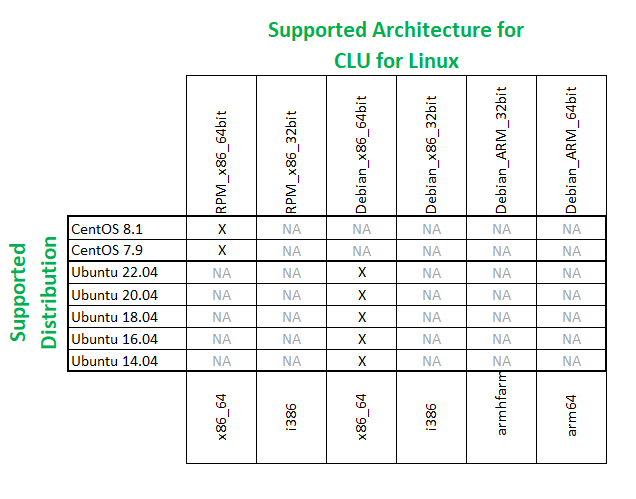 Figure 1: Supported Distributions for Command Line Utility for Linux